Erebine for iOS
The iOS app holds your chats, the tool calls and questions that wait on you, and your scheduled tasks, on iPhone and iPad. It signs in to the same account as the web app and Erebine Desktop, and every chat, workspace and task is the same in all three.
- devices
- iPhone and iPad
- experience
- Basic or Advanced, kept on the device
- appearance
- Follows Light and Dark Mode, or pinned in Settings
- notifications
- Tool calls that wait for your decision; finished and failed scheduled runs
Places
The bar at the bottom holds three places and the compose button.
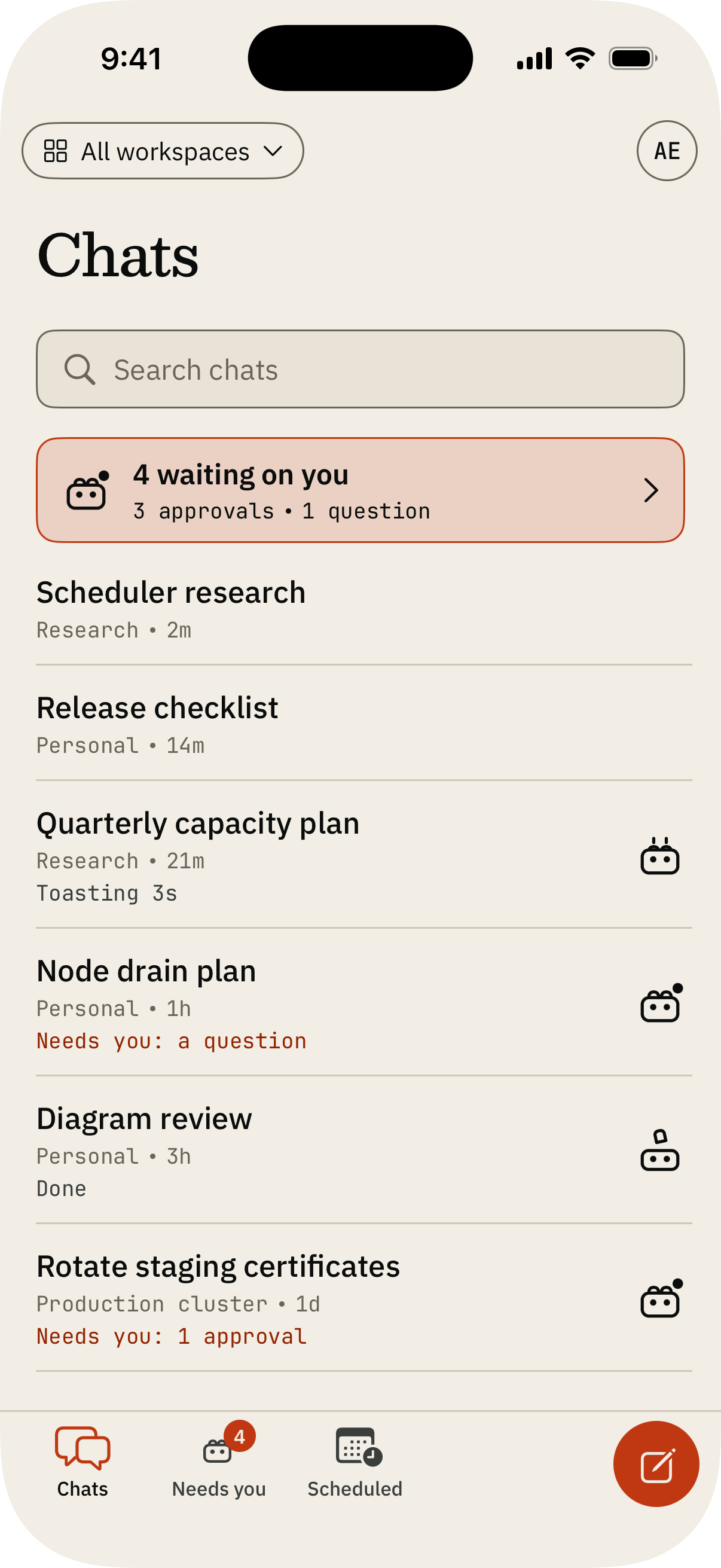
- Chats lists your chats, newest first.
- Needs you lists what waits on you. Its badge counts it.
- Scheduled lists your scheduled tasks. It shows when your deployment offers them.
The compose button starts a new chat in the workspace the Chats list shows. Your avatar at the top of Chats opens the account sheet: the project and Switch project, Workspaces, Usage, Team, Billing for the owner, and Settings.
Basic and Advanced
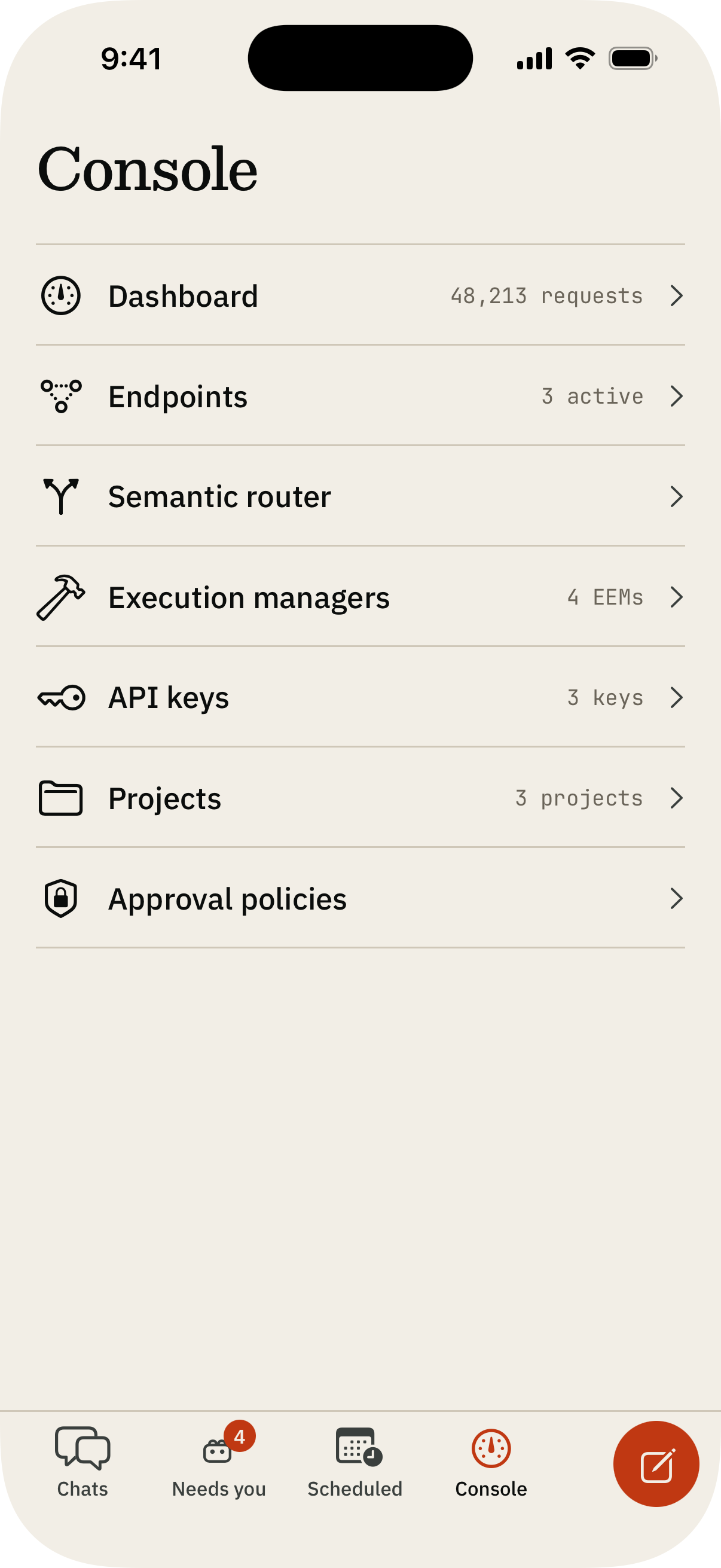
The app has its own Basic and Advanced. Choose in the account sheet, at the foot of the iPad sidebar, or in Settings. The choice stays on the device: it does not follow or change the experience you chose in the web app.
| Aspect | Basic | Advanced |
|---|---|---|
| Places | Chats, Needs you, Scheduled | The same, plus the Console |
| Chat tools | Every tool but Execute in, in the chat menu | Every tool; Execute in for owners and operators |
| The Console | Not listed | Dashboard, Endpoints, Semantic router, Execution managers, API keys, Projects, Approval policies |
| The welcome guide | Not shown | Shown once, on first sign-in |
A link or a notification opens its page in either experience.
Chats
The chip at the top of Chats picks what the list shows: every chat, or one workspace's. Press and hold a chat for its actions, among them Move to workspace.
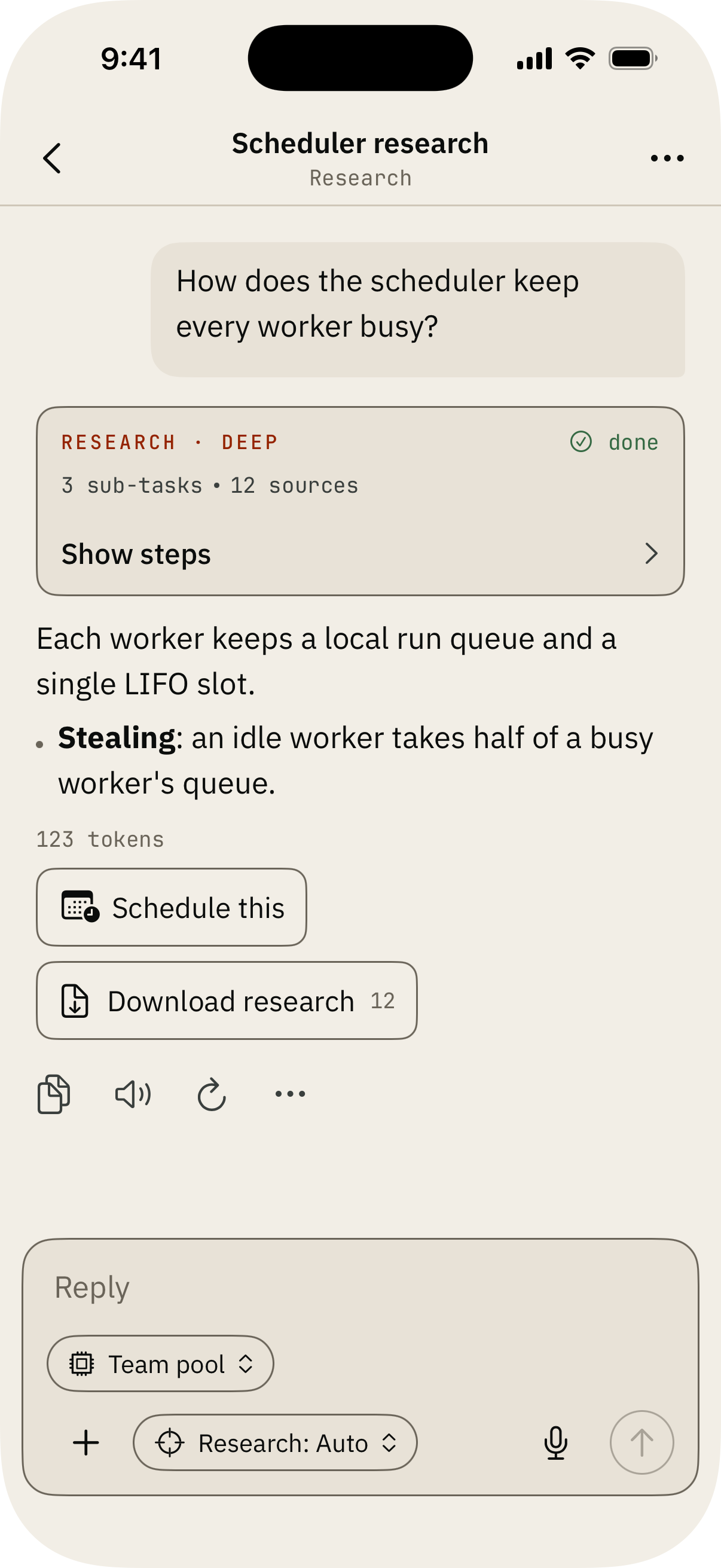
In a chat, the menu at the top right holds Branches, Memories, Documents, System prompt, Model, Access, Export and Settings; in Advanced, owners and operators also find Execute in. Under a finished reply sit its actions: Copy, Speak, Regenerate, Fork from here, Remember this, and Schedule this where scheduled tasks are offered. The composer attaches photos, takes dictation, speaks replies aloud, and saves a large paste as an attachment; Documents in the chat menu adds files. In Basic, the composer also chooses the model that answers, Auto or one of your project's endpoints by name, and how deeply it researches; in Advanced, its model chip opens Model in the chat menu, which lists the same endpoints with Workspace default and Semantic router. If the endpoint a chat used is removed, the chat goes back to the workspace default (Auto in Basic) and says so.
A reply read aloud with Speak keeps playing when you leave the app or lock the phone. A long reply is read in parts, so it starts in seconds and the rest follows while it plays. The Lock Screen and Control Center show it with play, pause, 15 seconds back and forward within the part that plays, and stop. A call, Siri or unplugged headphones pause it; dictation holds it until you press play. With Require Face ID to open on, the Lock Screen names it Reading reply instead of showing the reply's words.
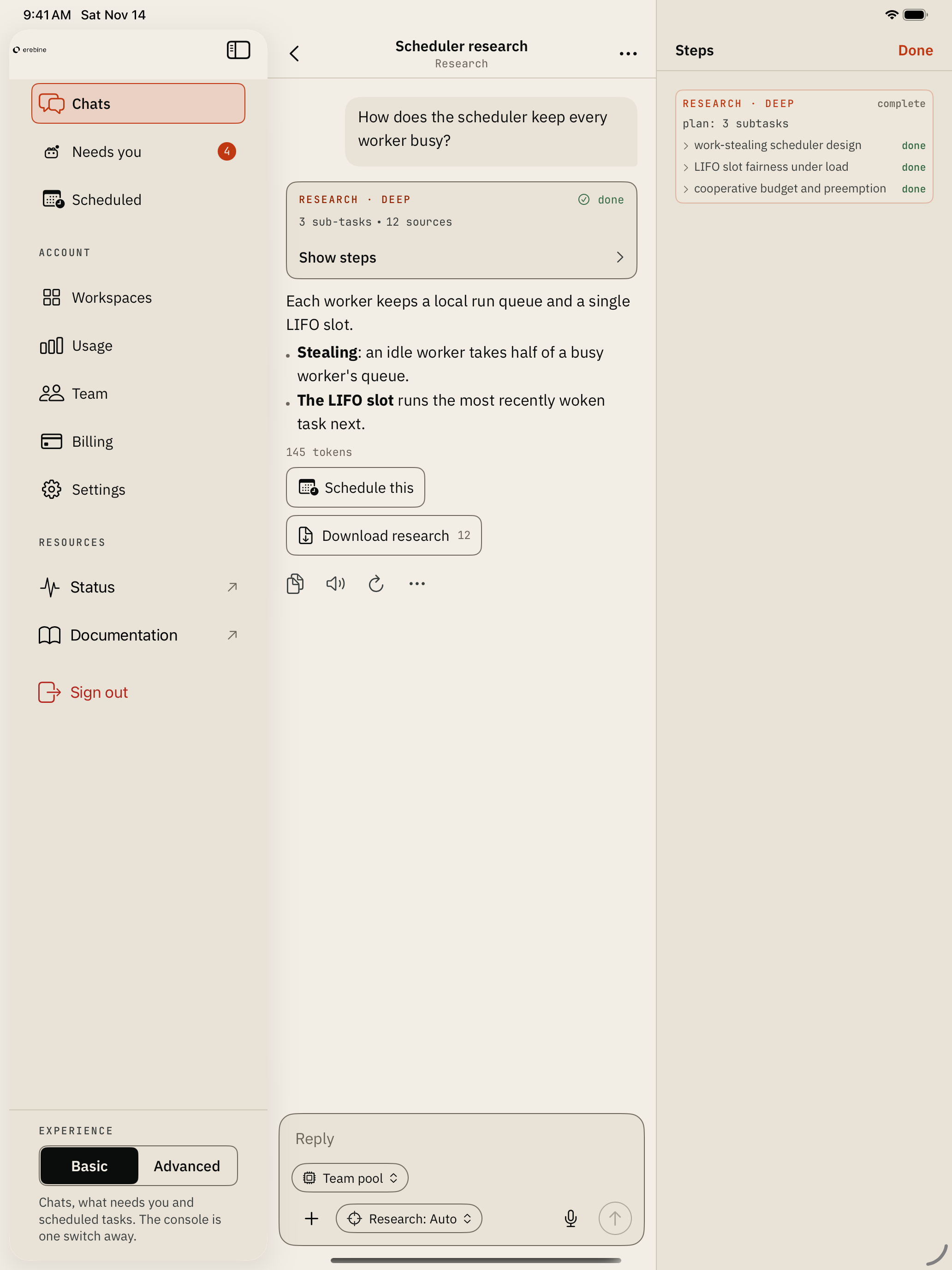
A deep research reply shows its steps as they run. On a wide iPad window they open in a panel beside the chat; on iPhone, in a sheet.
Tap an image in a chat to open it full screen. Press and hold it for Save to Photos, Share and Copy; Share also saves it to Files. The image keeps its original size and format. The first save asks to add to your photo library; Erebine never asks to read it. A photo from Unsplash opens on Unsplash from its credit link instead.
Needs You
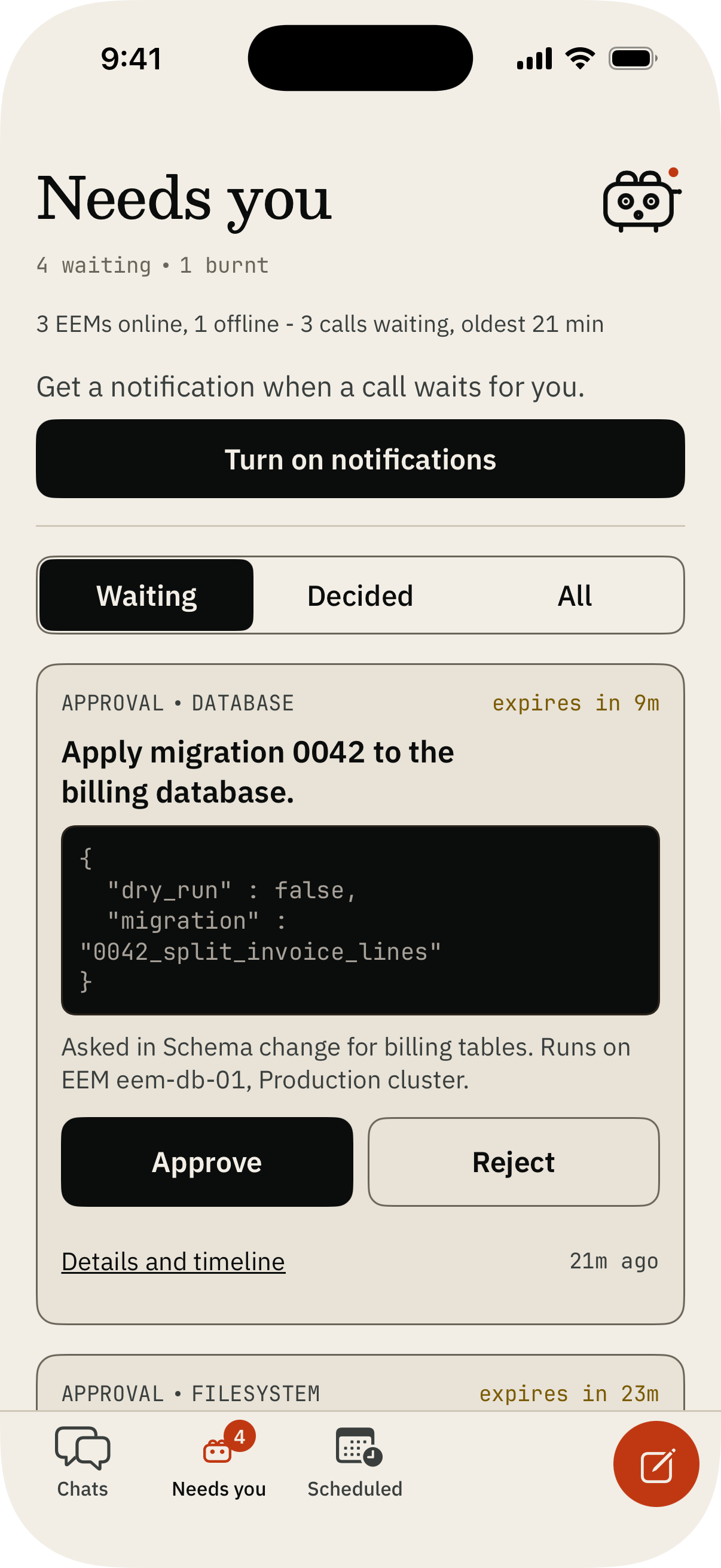
- Tool calls that wait for your decision, for owners and operators. Approve or reject on the card; an irreversible call asks you to type its name first. See Approvals.
- Questions a chat asked you. Answer in chat opens the chat at the question.
- Failed runs, each with the reason it failed.
With nothing waiting, Needs you says so.
Scheduled
A scheduled task runs a research topic or a prompt on a schedule and delivers each run into a chat. Scheduled Tasks describes them; this is how the iOS app shows them.
Each task shows its state, its schedule, its next run, and this month's tokens and cost. Filter by state, and run, pause, resume, edit or delete a task from its row. New task opens the task card: the name, what runs, when, the tools, the model, where results go, notifications, and limits, with the estimated cost under them.
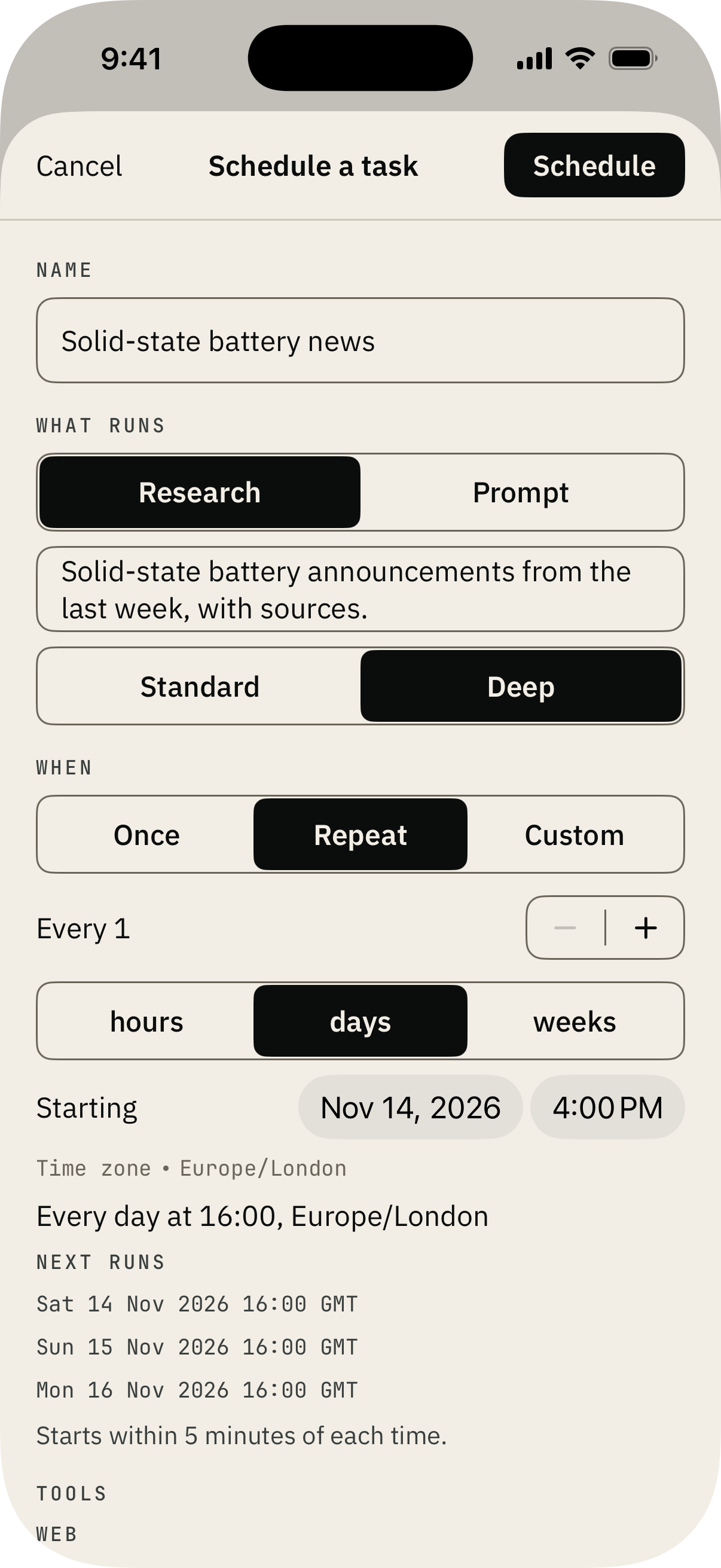
In a chat, Schedule this under a finished reply opens the card filled from that chat. When a reply proposes a schedule, its card offers Review and schedule and Dismiss; nothing is scheduled until you confirm. A chat a task delivers into shows the task under its title, and each run's reply carries its status, tokens and cost.
Notifications
Turn notifications on in Settings, under This device. The app asks iOS for permission only when you tap Turn on.
- Tool calls that wait for your decision reach owners and operators. Approve or reject from the notification; an irreversible call opens the app instead.
- Scheduled runs that finish or fail reach the task's owner. The notification carries the task's name; a tap opens the chat the run delivered into.
iPad
On a wide window a sidebar beside the page holds the places, the account's panes, Sign out and Experience; a narrow window, such as a third of the screen in Split View, uses the bar as on iPhone. The sidebar hides and returns from the button at the top of the page. While the sidebar shows, your avatar opens a small card with your account, the project and Switch project, since the sidebar lists the rest. Drop an image on a chat to attach it. A pointer highlights what it is over.
Keyboard
With a hardware keyboard. The place and sidebar shortcuts work where the sidebar shows.
| Keys | Action |
|---|---|
| Command+N | New chat |
| Command+1 to Command+4 | Go to a place, in the sidebar's order |
| Shift+Command+L | Hide or show the sidebar |
| Command+Return | Send |
| Command+. | Stop the reply |
| Command+F | Find in the chat |
| Command+G, Shift+Command+G | Next and previous match |
| Escape | Close find |
| Shift+Command+C | Copy the last reply |
Settings
- Experience: Basic or Advanced.
- This device: Appearance (System, Light, Dark), Require Face ID to open, Notifications.
- Project: the project's name, two-factor for every member, and your registration country; Privacy; Licenses.
- Session: the server you are signed in to, Sign out, and Invite someone.
- Danger zone: Delete project and Delete account.
Face ID locks the app when it leaves the screen; Face ID, Touch ID or the device passcode opens it.
