EIM on macOS
On Apple Silicon, EIM is a native macOS application. It installs, configures, and controls the agent with Metal-accelerated vLLM in one window. Paste a join key and the Mac enrolls into the router mesh as a worker. No container, no admin password. Sign in and the same window becomes the console for the rest of the platform: thirteen destinations across three contexts, each one stating what it needs.
- platform
- Apple Silicon (arm64), macOS 15+
- accelerator
appleMetal(unified memory, TP 1)- runs as
- logged-in user (launchd, no admin)
Why a Native App
vllm-metal needs native Metal access (MLX plus Metal kernels and an arm64 Python 3.12 runtime). Apple's container binary runs Linux guests with no GPU or Metal passthrough, so there is intentionally no container image for this backend. The macOS app is the installer, environment-prep, and control surface in one place, and everything runs as the logged-in user.
The CUDA, ROCm, and CPU paths still use the container stacks documented on the EIM Overview page. This page covers the Apple Silicon path only.
Requirements
- Apple Silicon Mac (arm64) running macOS 15 (Sequoia) or newer.
- A join key from the dashboard: Infrastructure -> Agents -> Generate Join Key.
- Outbound HTTPS to the router URL (enrollment) and outbound TCP to the router's CurveZMQ port (data plane).
curl, uv, and Python 3.12 are provisioned automatically; uv and a pinned 3.12 are installed on first run if missing.
Install
Erebine Desktop is not currently published. Releases build Linux only, so there is no DMG to download and no Homebrew cask to install. What follows is the setup path inside the application.
- Open Erebine from Applications. The Agent destination shows Setup until the agent is installed.
- Confirm the host preflight passes, paste your join key, and click Install & Start.
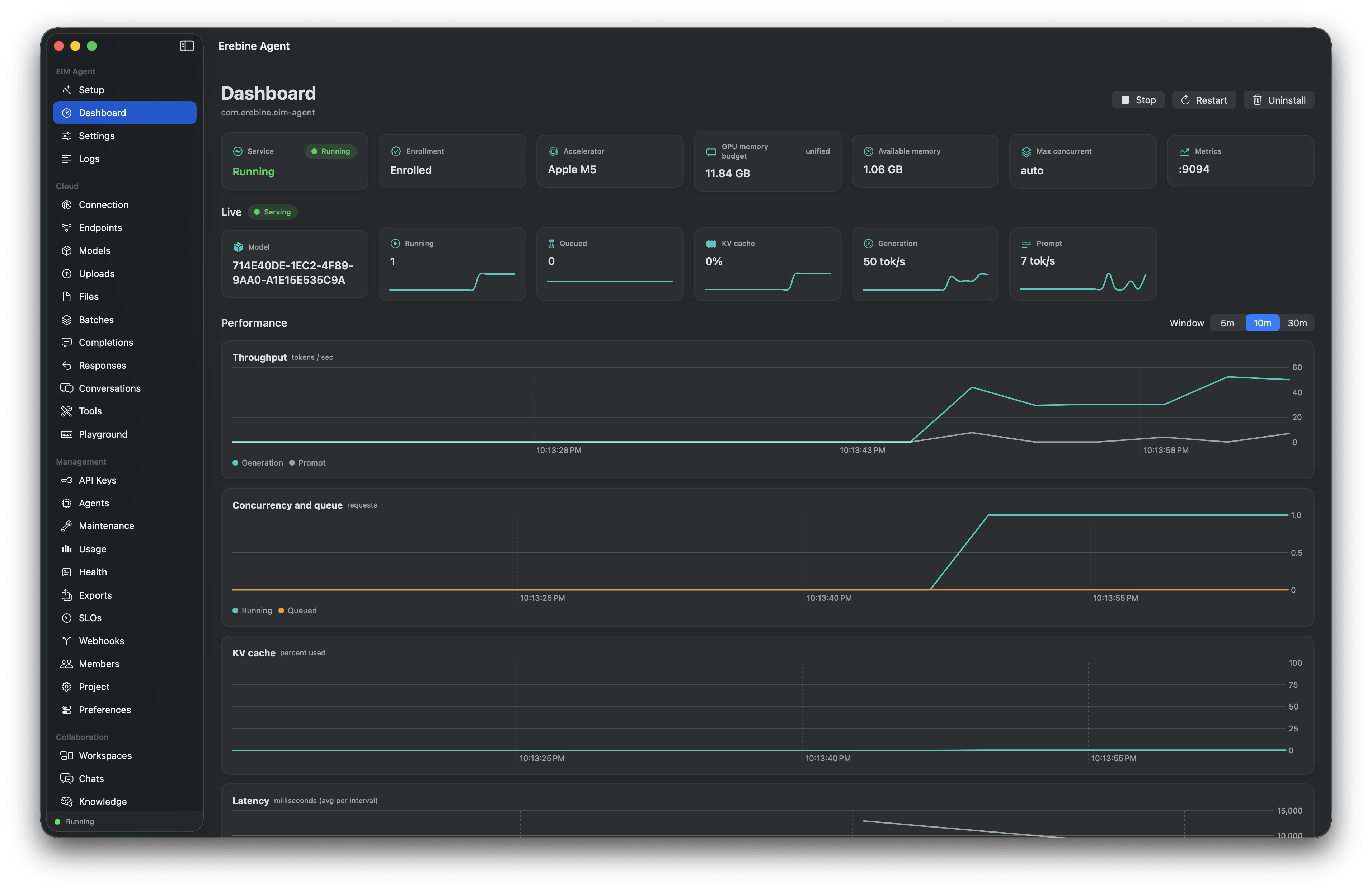
The app reports Apple Silicon as a single appleMetal accelerator sized from the Metal unified-memory budget; tensor parallelism stays 1. Once enrollment succeeds, the Mac appears under Infrastructure -> Agents with status online.
Sign In
Enrolling the agent needs a join key. The two cloud contexts need an account, and the app signs in as a member rather than asking you to paste an API key. There is no key field, and no key to copy: key material never crosses the clipboard, a text field, or a screenshot.
- Email and password. An account with two-factor enabled is then asked for a TOTP code or a backup code.
- GitHub. Opens a system web-authentication sheet with an ephemeral browser session, so the app does not inherit a browser login you did not choose to hand it.
On success the app mints one API key for this Mac, named Erebine Desktop (<hostname>), carrying the inference scope and expiring 90 days out. It goes straight into the macOS Keychain and is never displayed. The hostname is in the name because the project's key list is where a lost laptop gets revoked, and identical rows tell you nothing. Revoke it from Integrations -> Keys or from the dashboard.
The management surfaces run on the member session, not on that key, so the key is scoped to inference and nothing else.
Signing out ends the member session and closes the cloud destinations. It does not stop the agent. Agent, Import and Logs need no cloud credential, stay available, and the Mac keeps serving traffic. A session that lapses while the Mac is offline behaves the same way: the cloud destinations ask you to sign in again, and the worker carries on.
What You Can Reach
Two different things can stand between you and a destination, and the app does not conflate them.
Not right now. A destination blocked by state stays in the sidebar and stays selectable. Opening it renders the reason as text on the surface -- "Sign in to Erebine to open this.", "Choose a project to open this." -- rather than as a tooltip on a greyed-out row. A disabled control is out of the macOS keyboard focus order, so a tooltip on one is unreachable without a mouse.
Not for this account. A destination the account cannot be granted is not listed. The sidebar footer then reads N not available, and opening it names every withheld destination beside the specific thing that would grant it. Withholding a destination silently would be indistinguishable, from the operator's side, from never having shipped it.
Withholding needs proof. The app hides a destination only when it can establish positively that the account cannot use it: today that is Exec, when this Mac's key does not carry the execution scope. Where the app cannot establish an entitlement it lists the destination and lets the server answer. A 403 you can read costs less than a destination you can never find.
Entitlements resolve when you choose a project, not continuously, so the sidebar does not rearrange itself while you are reading it.
Integrations is never hidden on a key scope. It holds Keys, Webhooks and MCP, and the three have different requirements -- MCP is local wiring and needs nothing at all. Hiding the destination on the strictest of them would take two reachable tabs down with it.
Control Surface
The Inference Manager context in detail. These need no cloud credential and work signed out.
| Surface | What it does |
|---|---|
| Agent | Setup until the agent is installed, then live status, the Apple Metal accelerator and unified-memory budget read from Metal, and Start / Stop / Restart / Uninstall. |
| Import | Import a local model directory into the agent's model cache, list what has already been imported with each model's router status, optionally create an endpoint for it, and remove models you no longer want. Works while the agent runs or while it is stopped -- a stopped agent is started so the model reaches the router rather than sitting in the cache unseen. See Preseeding a Local Model. |
| Settings | Agent configuration, split across two tabs. Essentials leads with this Mac's accelerator, memory budget and free memory, then the allocation the engine will take -- as a whole percent, with a recommendation derived from what is free right now. Connection, request limits and metrics sit beside it. Advanced holds engine tuning (sequences, context, batched tokens, load timeout, cache size, quantization, KV cache), speculative decoding, request timeouts, and the pass-through argument and environment escape hatches. Every field states what leaving it blank resolves to. Apply & Restart saves and restarts the agent with them. |
| Logs | The agent's stdout and stderr, tailed live. |
| Quantization on this platform | The macOS runtime is vllm-metal, whose kernels are MLX rather than CUDA. AWQ loads through an MLX repack and is limited to 4-bit, group size 128, with a zero point. GGUF and MLX checkpoints are detected when the model loads and need no setting at all. fp8, GPTQ and bitsandbytes have no Metal implementation, so the Settings pane does not offer them -- choosing one produced a failed model load, not a slower one. |
| Menu bar | Status at a glance with quick start and stop. |
To inspect the service by hand:
launchctl print "gui/$(id -u)/com.erebine.eim-agent" | head -20
tail -f ~/Library/Logs/erebine/eim-agent.out.log
tail -f ~/Library/Logs/erebine/eim-agent.err.log
What Install Does
Behind the Install & Start button the app, in order:
- Preflights the host (arm64, macOS,
curl,uv). - Provisions Python 3.12 via
uvand installs vllm-metal into~/.venv-vllm-metal. - Installs the HuggingFace compat shim into the venv.
- Renders the vLLM wrapper, entrypoint, and a per-user LaunchAgent.
- Enrolls with the join key and starts the agent under
launchd.
