Erebine Desktop Code
Code is a coding agent in Erebine Desktop. Open a folder on your Mac and it reads, searches, edits, builds and tests there, on the models your Erebine project serves. The tool loop runs on your Mac: the router serves the model and runs none of the tools.
- works in
- One folder you open on your Mac
- models
- Your project's models that accept tools, served by an EIM
- asks before
- Every edit, command and web call, unless you allowed it
- intelligence
- A workspace in your project for each folder, or none
- history
- On this Mac
- runs on
- Apple silicon, macOS 26 or later
What Code Is
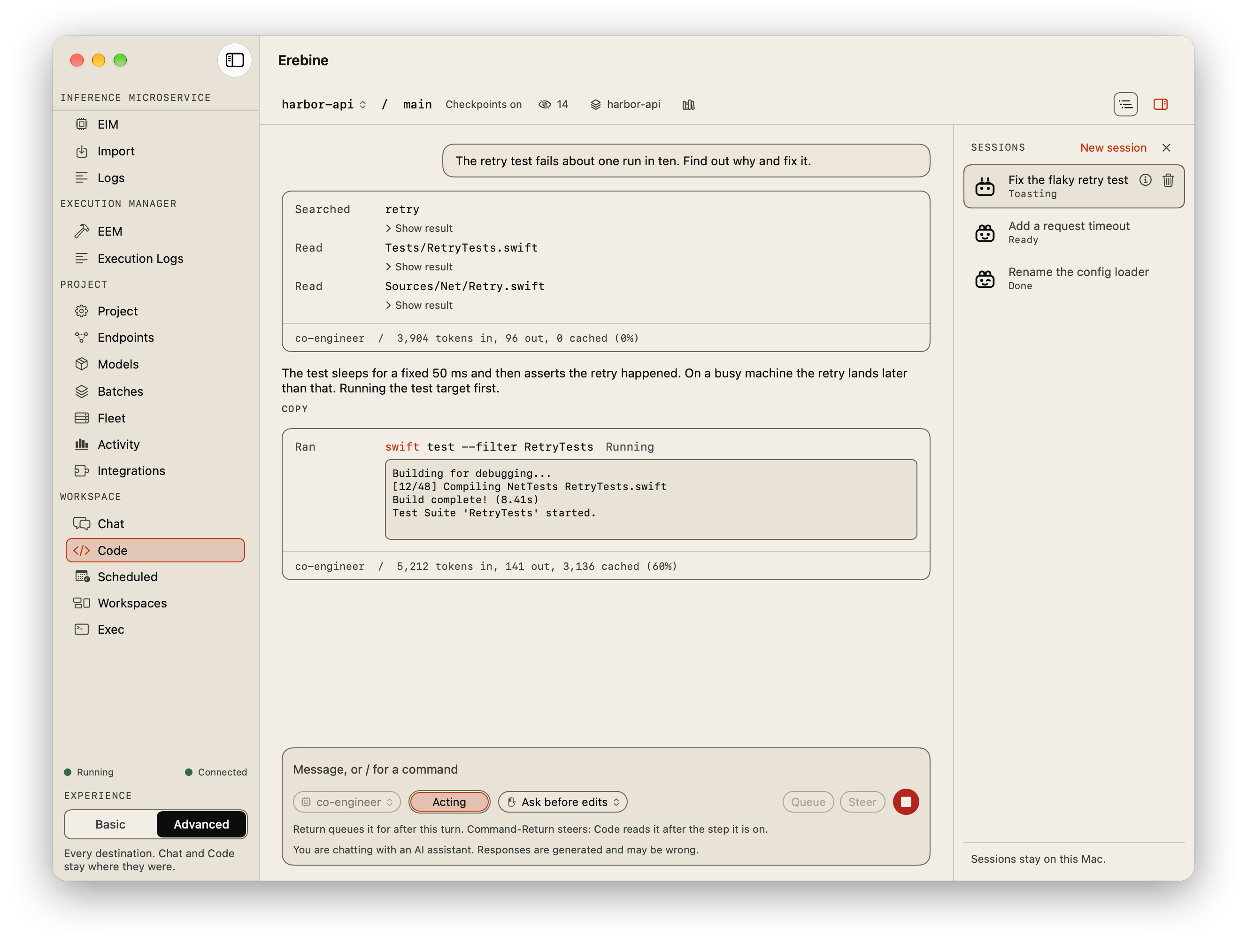
Code works in one folder you open. You describe a task; the model reads files, searches them, edits them, runs commands and reads git state through tools that run inside Erebine Desktop, in that folder. Each step shows in the pane as it happens: what was read and searched, each edit with the lines it added and removed, each command with its output as it prints. An edit that asks you first shows its diff on the approval card.
The model runs on your Erebine project. Each request is an ordinary chat completion: the router hands it to the Erebine Inference Microservice (EIM) serving the model, and the tool calls in the reply come back to your Mac to run. No tool that touches the folder runs on the router or on an Erebine Execution Manager (EEM). Unless you set a folder to None, it also gets a workspace in your project, and Code's Erebine tools (project intelligence, memory, code search, web search and fetch) work in that workspace.
Getting Started
- Install Erebine Desktop from the downloads page, as a disk image or with Homebrew.
- Open it and accept the license agreement. It comes first.
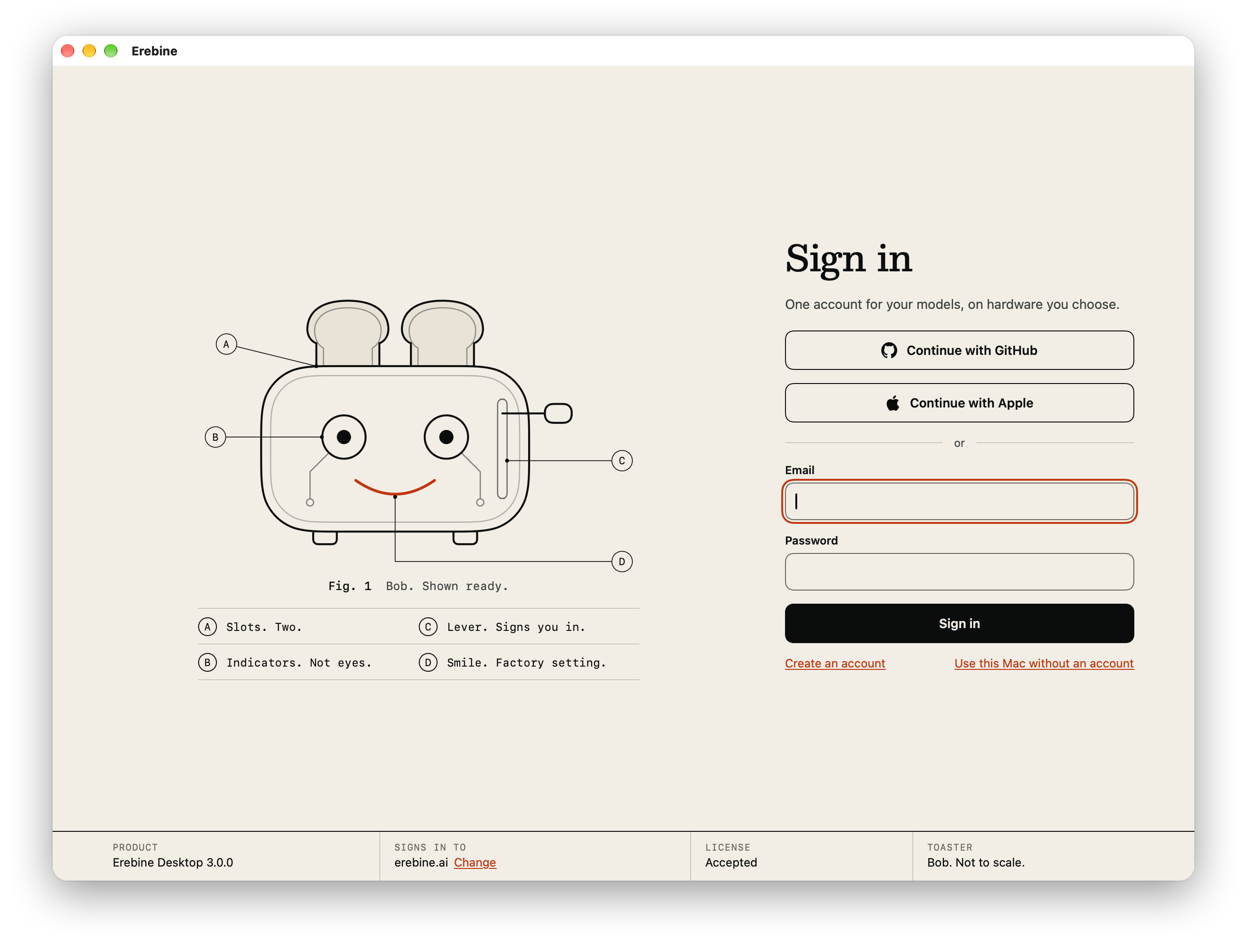
- On a Mac with no session and no EIM or EEM set up, sign in on the screen that follows: Continue with GitHub or Continue with Apple when your site offers them, or your email and password. An account with two-factor authentication enters its six-digit code in the same form. Create an account opens the site's sign-up page in your browser.
- Choose a project, if your account has more than one and none is your default.
- Choose how Erebine opens for you, Basic or Advanced. This is asked once per project, and not at all when you already chose for that project on the web.
- In Basic the app opens on Code; in Advanced, open Code from the sidebar. Press Open folder, pick the folder you want to work in or make one with New Folder, and describe the task.
The model menu in the composer starts on the model the
folder used last. A folder with none starts on
erebine/co-engineer when your project
serves it, else on the first model listed. The menu
lists only models that accept tools. If the model the
folder was set to is no longer offered by your
project, a message is not sent: a line beside the model
menu names the model and the one the menu shows now,
and your message stays in the field. Choose a model,
then send it again.
Beside it, on a model that takes one, is the reasoning effort: Model default, or a level. A level is sent with every request of the session's turns, from its next request on, and its sub-agents start with it. Model default sends none. The session keeps its choice, and a new session in the folder starts with the last one made for that model.
The sign-in screen names the site it signs in to. Change points it at another site, such as your own Erebine deployment.
The screen appears on a Mac with no session and no EIM or EEM set up. A Mac that is signed in, or already runs an EIM or an EEM, opens straight into the app; sign in there from Project.
Use this Mac without an account skips sign-in and opens the EIM on this Mac, and the app remembers the choice. Code needs a project for its models, so sign in from Project when you want it.
A folder is refused when it is the root of the disk, your home folder, or a folder that holds your home folder. Open a project folder instead.
What It Can Do
| Work | What the model can do | Asks you first |
|---|---|---|
| Read and search | Read a file or a range of its lines, find files by pattern, search file contents, list a directory tree. | No |
| Read git state | Status, diff, log, and one commit or one file at a commit. | No |
| Edit | Write a file, replace text in one, or make several replacements in one file as a unit. | Yes, unless you allowed edits |
| Run commands | Run any command line, starting in the folder: build, test, format, commit, push. | Yes, unless a saved rule allows it |
| Project intelligence | Read the folder's workspace: its brief, decisions, milestones, memories and artifacts, and search your project's connected code. Save memories, decisions and milestones there. | No; saving is refused in Plan |
| Search and fetch the web | Search the web or for images, fetch a page or an image, inspect a site. | Yes, unless a saved rule allows it |
The read, search, git and edit tools act only inside
the folder. A path outside it, a path through a
symbolic link, a file with a second hard link, and
git's own files under .git are refused, and
so is a file larger than 2 MiB. So are Erebine's own
keys, settings and Code state, wherever they are, and
the files on the folder's
never-read list. A command
starts in the folder and can do anything you can, which
is why it asks.
Commands run in your login shell's environment, as they
do in Terminal: your PATH, your version
managers, and git with your identity, signing and
credentials. The shell that runs them is zsh unless
you pick another under Settings,
Code, Shell: bash,
fish or sh when installed, or any shell by its path.
Whichever it is, a command runs as a plain,
non-interactive shell that reads no profile or rc
file, so the environment is the same under every
shell; the model is told which shell it writes for,
and a command's approval card names a shell that is
not zsh. The choice applies to sessions started after
it. Pagers are off, and git never waits on a
password prompt. A command runs for up to 120 seconds,
or up to 600 when the model asks for longer, and is
stopped at its limit with what it printed until then.
A command that exits with an error is reported to the
model as it ran: a failing test run is information, not
a failed tool. Long output reaches the model as its
beginning and its end.
The git tools read the repository without running anything it names: hooks, filters, the file system monitor, pagers, external diff and text conversion drivers, and signature checks are switched off, and your global git configuration is not read. They never change the repository and never fetch. Git that changes anything (staging, committing, pushing) is a command, and asks.
The model is told not to commit, push or rewrite git history unless you ask, and to check its work by building and running tests before it says something works.
The folder's AGENTS.md
When the folder has an AGENTS.md at its
root, Code reads it when a session starts and gives it
to the model as the folder's rules, up to its first 32
KiB. A change to the file reaches the model in a new
session. When the file cannot be read, or is cut at 32
KiB, the session says so once. It is read like any other
file: a symbolic link is refused.
The prompt
In the Advanced experience, Prompt in
the pane's header shows the system prompt and the tools
as the session sends them, and lets you edit the
prompt's written instructions: the role, how to work,
approvals, and Plan and Act. The edit is saved on this
Mac, in ~/.config/erebine/code-instructions.md,
not in your project or on your other devices. It applies
to every folder from the next session; a session already
running keeps its prompt. The never-read patterns, the
environment, the folder's workspace and project brief,
and the folder's AGENTS.md are still added
after it, and the app enforces approvals,
Plan mode and the never-read list whatever the
instructions say. In Basic the control is hidden, and an
edit still applies.
Find in the session
Command+F opens a find bar at the top of the session, in Code and in Chat. It searches everything the session shows: your messages, replies, code, tables, each tool call's target and output, and thinking. Matches are highlighted, and the count shows where you are. Return or Command+G goes to the next match, Shift+Command+G to the previous, and Command+E searches for the selected text. A match inside closed thinking or a closed result opens it. Case and accents are ignored; Aa makes case matter. Escape or Done closes the bar and returns to where you were typing. The search stays current while a reply arrives.
Download research
A turn that searched the web, read a page or inspected a
site ends with Download research and
the number of sources it read: beside
Copy reply, and on the turn's
Researched entry in Trace's Timeline.
In a long turn, the last card that holds a search or a
page carries it too; a typed /web or
/fetch carries it on its card. It is not
there while the turn runs. It saves one zip of
everything the turn gathered, its sub-agents' research
included:
- index.md: your prompt, the answer, the numbered sources with their addresses and when each was read, the sources the answer cites, the searches, and notes on what was cut or left out;
- sources/: one file per page or site, the text as the model read it;
- searches.json, images.json (each image's details, licence and credit, never the image itself; a Pixabay result lists its page, not its file link, which expires), claims.json (the links in the answer, matched to the sources), usage.json (tokens per request) and manifest.json.
Code makes the zip on this Mac from the session's history, so it works for earlier sessions too. A long result was shortened to fit the model before it read it, and the source's file says so; sessions from before this release do not record when each source was read.
In Chat, a reply whose research the service kept shows Download research once, with its number of sources: under its research steps while they are on screen, and beside Copy when you open the chat again. A note under it says when some of the research was not kept. Either way you choose where the zip is saved, and the control says Preparing research while it works and Research saved when it is done.
Images in a chat
Images you attach show in your message, and an image the model makes as a file shows in its reply, beside the images it places in its answer. Click an image to open it at full size in the app your Mac opens images with. Control-click it for Open, Save As..., Copy Image and Share; point at it and the same four appear on its corner. Save As and Copy Image keep its original size and format. Drag an image out to put the file in Finder or another app. An image that is no longer stored says Image expired. A photo from Unsplash opens on Unsplash from its credit link instead.
Project Intelligence
Project intelligence is optional for each folder. When you open a folder in Code while signed in, Code creates a private workspace in your project for it, named after the folder, and links the two. Only the folder's name is used, never its path. A folder that already has a workspace never gets a second one, and a folder you never open gets none.
Workspace: in the pane's header names the folder's workspace and opens the choice: another of the project's workspaces you can use, New for this folder, or None: no project intelligence. A change applies from the folder's next session; a session already running keeps its tools and prompt.
A folder keeps its workspace. Open the folder again, after a relaunch too, and its sessions use the same workspace: each one reads the workspace's brief when it starts and can recall what earlier sessions saved. A new session says so before your first message.
With None, nothing is created in your project and nothing about the folder is sent there: the session has no Erebine tools, no project brief, and no workspace. Switching a folder to None only unlinks it: the workspace is not deleted, and its memories and decisions stay in your project.
The same sheet holds Project intelligence for new folders, a setting for this Mac. It is on by default. Turn it off and a folder opened for the first time starts at None, with nothing created; you can still choose or create a workspace for it later.
A session in a folder with a workspace gets these tools from your project, listed once when the session starts:
- Project intelligence: the project brief, decisions, milestones, the graph, an analysis of the workspace, and tracking a decision, a milestone or a relation;
- Memory: recall, search and save;
- Artifacts: list, read, create and update the workspace's documents;
- Code search: search your project's connected repositories and read their files;
- Web research: web and image search, fetching a page or an image, and inspecting a site;
- Calculator;
- Time and weather: the time now, in UTC or in a place, and a weather report for a place.
Your project decides which of them a session gets, as it does for any client. Code never offers the execution tools that run on an EEM, workspace switches that only an owner may flip, or image generation. When the workspace has a project brief, the session reads it once when it starts and gives the model up to its first 8 KiB.
Code follows your project's MCP guidance for these tools, and the workspace's own evolved guidance when it has some, read once when a session starts. The model checks what the workspace knows before it starts a task, and saves memories, decisions and milestones as it works, without asking you first. It is told to use web research, code search, the calculator and the time and weather tools rather than answer from memory, and to keep the documents it writes for you as artifacts.
When a session has no Erebine tools
When a folder's sessions lack these tools, Code says why and offers what fixes it: in a line under the pane's header, at the top of the workspace sheet, and in a new session's lines about its folder.
| What Code says | What to do |
|---|---|
| Project intelligence is off for this folder. | Choose a workspace opens the workspace sheet. |
| No workspace could be created for this folder, and why. | Choose a workspace: pick one, or try New for this folder again. |
| This Mac's project key cannot save memories, decisions or milestones, or cannot use the web tools, and the scope it lacks. | Refresh key makes this Mac a new project key with the scopes your role holds. Sessions use it from their next message. |
| The project refused this Mac's key. | Refresh key. |
| The project's Erebine tools could not be reached. | New session asks again. |
| The project offers this Mac's key none of Code's Erebine tools. | Refresh key. If a session still has none, the project has them turned off. |
Refresh key replaces the key the app made for this Mac when you chose the project, and revokes the old one. It does not sign you out, and there is no key to paste.
Reads and saves to the workspace run without an approval card, as they do for an editor using your project's intelligence. In Plan, saving is refused, like an edit. Web search and fetch, the time and the weather ask you every time, unless the folder has a rule for them. Code does not send your location: name the place, or the model asks you for it. Without a place, the time is UTC.
Commands
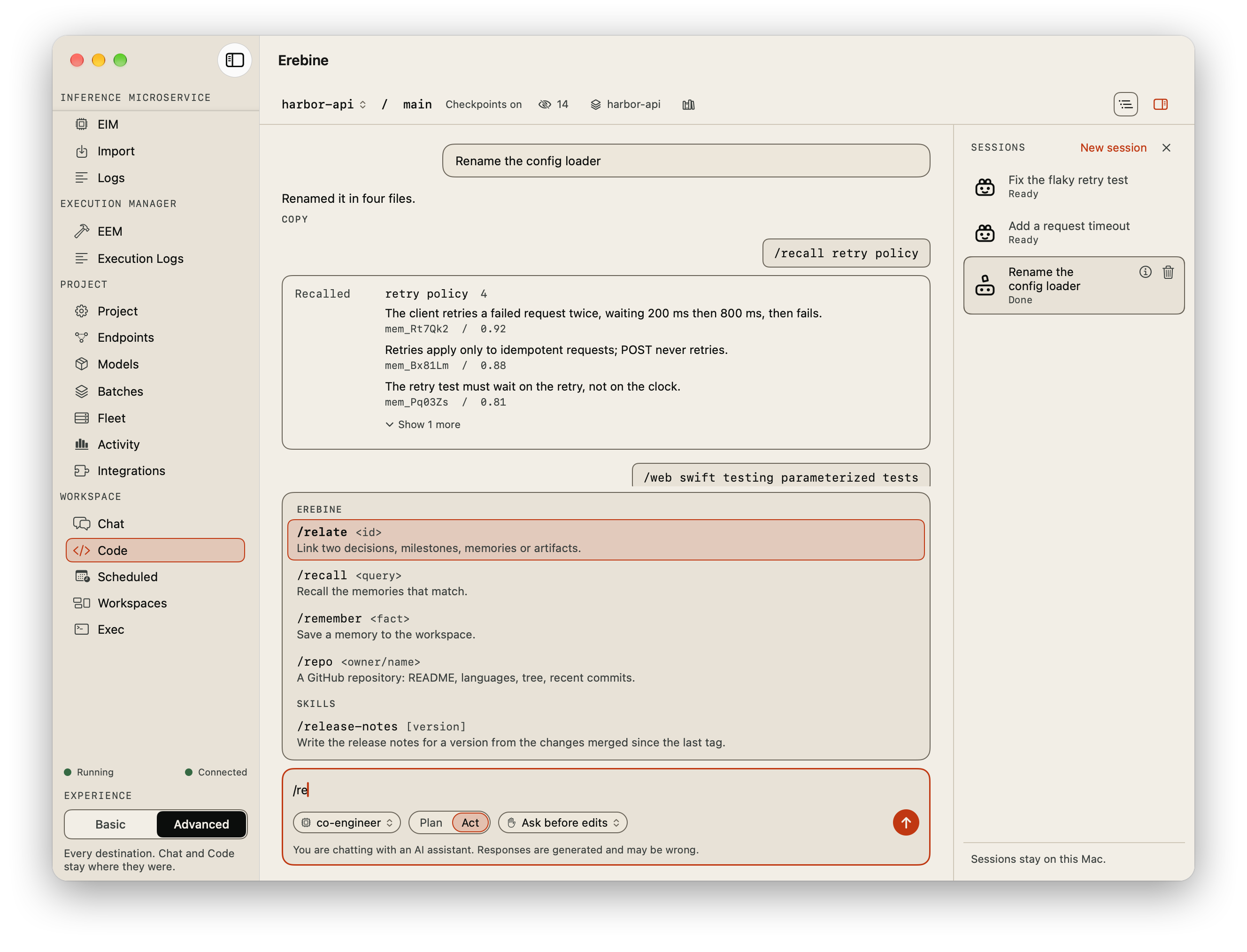
Type / at the start of the message field
to list the commands that run these tools yourself:
/brief, /recall,
/remember, /decide,
/web, /fetch,
/calc, /weather and more, each with what it takes and
what it does. The arrow keys choose, Tab or
Return completes the word, and
Return runs it.
/decide, /milestone and
/relate open a small form for their other
fields. A word that is not a command, such as a path,
is sent as a message.
A command runs its tool at once, with no model in between, and its result joins the conversation, so the model sees it on your next message. Typing it is your approval: it runs without an approval card, in Plan too. Commands need the folder's workspace; one the folder cannot run says why above the message field and keeps what you typed. The results of your project's tools, typed or called by the model, show as cards: memories, the brief, decisions and milestones, web results with their links, the fetched page, artifacts, code search, repositories, the calculator, the time and the weather, credited to their sources. The folder's skills are listed under the commands.
One command is Code's own and needs no workspace:
/compact, listed last under Conversation.
It summarises the older part of the conversation to
free the model's context; see
Long Conversations.
When no workspace can be created, because your role in the project may not create one or the request fails, or when the project's tools cannot be listed, Code works with the folder's own tools and says so once: in the header, or in the session.
Approvals
Reads run without asking, and so do reads and saves to the folder's workspace. An edit, a command, or a web search or fetch that needs you stops the turn at an approval card in the pane. A command's card shows the command line and the model's own sentence about what it does. A web search's card shows the exact query; a fetch's card shows each URL; a time or weather card shows the place it sends. An edit's card shows the diff it will write, computed from the file as it is now; an edit that cannot apply to the file as it is fails without asking you. Nothing times out: the turn waits for you.
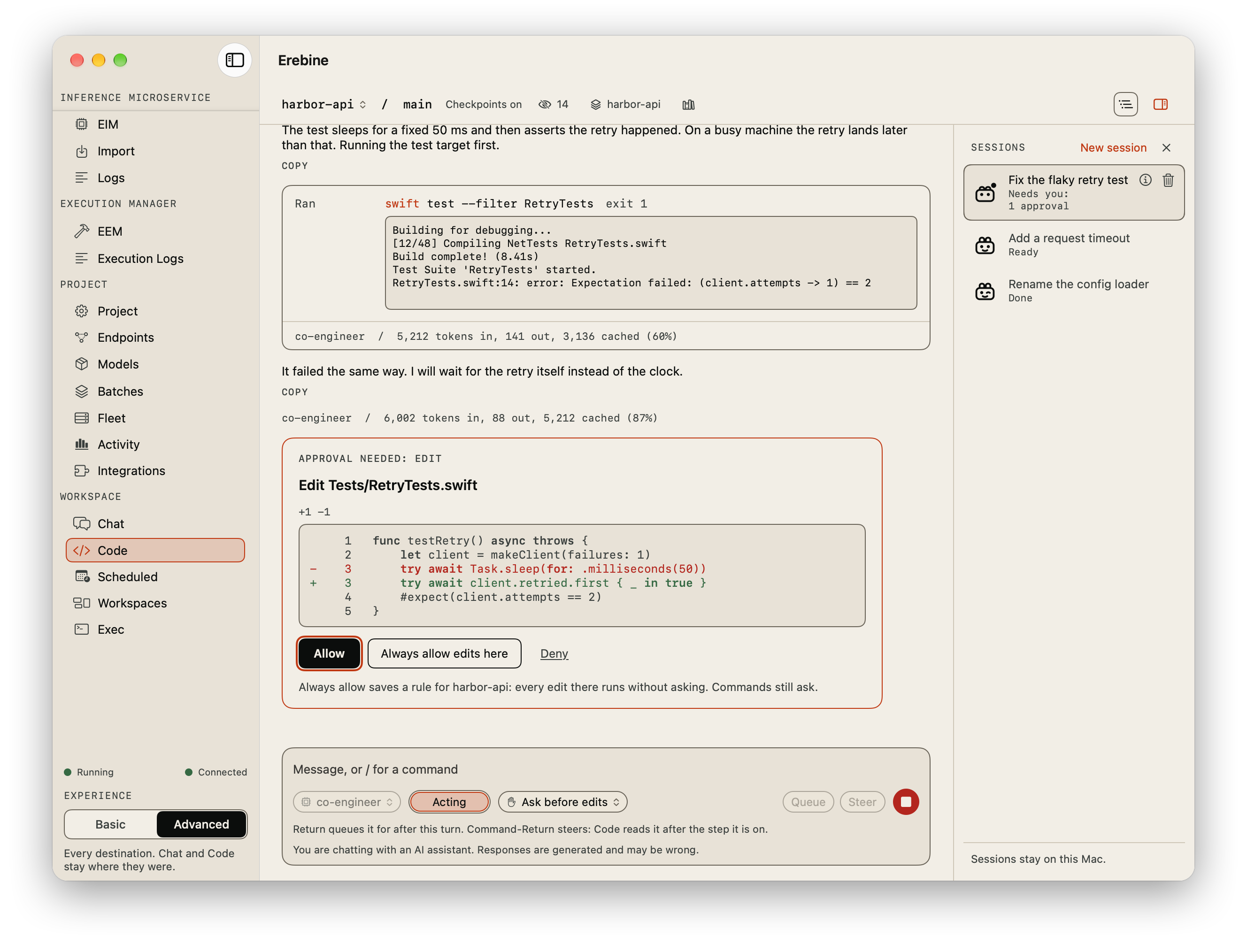
- Allow runs the call this once.
- Always allow runs it and saves a rule for this folder. The button names the rule, Always allow edits here or Always allow and the command's first words, and a sentence under it says exactly what the rule permits: for an edit, every edit in this folder; for a command, every simple command that starts with the same words, such as
git status,swift buildornpm run test; for a web or image search, every such search; for the time or the weather, every such lookup; for a fetch, every page on the same host. When no rule can cover the call, the button is not offered and the sentence says why. - Deny does not run it. It opens an optional note to the model, then Deny sends the answer. A note goes to the model as the reason; without one, the model is told not to retry and to change its approach or ask you.
A saved rule matches whole words: git status
allows git status --short, and
npm run test does not allow
npm run build. Rules belong to the folder
they were saved in.
Asked every time
Under Ask before edits and
Allow edits in this folder, no rule can
cover these, and none is offered: they ask on every run,
and the card says why. Under Run without asking
in this folder, only the commands containing
hidden or direction-changing characters and the commands
that name a never-read file still ask. Code reads every
word of a command, not only the first, because a program
such as xargs runs the words after it as a
command of their own.
- Commands that chain, redirect or substitute. A pipe,
;,&&, a redirection, a$or backtick substitution, a backslash, a glob, a leadingNAME=value, a word that starts with#, or a shell form Code does not read, such as a tab or a blank at either end of the line. - Commands that can destroy or overwrite work. A word such as
rm,mvorcpanywhere in the line, or a step such asgit pushorgit reset. The card marks them. - Commands that run another command or send data off the Mac. A wrapper such as
env, a shell, or a transfer such ascurl, anywhere in the line. - Commands that fetch a package and run it.
npx,uvx,uv tool run,uv run --with,deno x,deno runof a URL or annpm:orjsr:module, andgo runof amodule@version: what runs is whatever the registry or the URL serves. A rule foruv run pytest,deno runorgo runstill covers local code. - Commands containing hidden or direction-changing characters. Invisible characters, or ones that reverse how text is drawn, could make a command read differently from what runs. The card says so and writes each one out as an escape, such as
\u{202E}. - Commands that name a file on the never-read list. The card names the file and the pattern it matches.
The reading errs toward asking: grep rm notes.txt
asks, because one of its words names a program that
deletes files. A quoted argument stays one word, so a
commit message that mentions one is not read as a
command, and npm install keeps its rule.
None of these is refused for it; each is only asked
about.
An edit asks every time, too, when the file's path contains hidden or direction-changing characters, under every preset, and so does a web search, fetch, time or weather lookup whose query, URL or place contains them, whatever rules the folder has. Under Ask before edits and Allow edits in this folder, a fetch of pages on more than one host asks every time. Under Run without asking in this folder, in Act, a web search, fetch, time or weather lookup runs without asking, on any number of hosts, unless it contains hidden characters. Wherever the app shows such a path or command, those characters are written out as escapes, so what you read is what runs or what is written.
Trust presets
| Preset | Edits | Commands | Web search, fetch, time and weather |
|---|---|---|---|
| Ask before edits (the default) | Ask | Ask, unless a saved rule allows them | Ask, unless a saved rule allows it |
| Allow edits in this folder | Run without asking | Ask, unless a saved rule allows them | Ask, unless a saved rule allows it |
| Run without asking in this folder | Run without asking | Run without asking | Run without asking |
The preset is the menu beside Plan and Act in the composer. Allow edits in this folder is saved as the folder's rule, the same rule Always allow edits here saves, so the menu always shows what the folder allows. Run without asking in this folder saves that rule and a second one that, in Act, runs everything else, except the hidden-character and never-read asks above. Under it, in Plan and Act, a turn does not pause after 60 requests. Choosing Allow edits in this folder removes the second rule, and Ask before edits removes both. Every choice keeps the folder's command and web rules and its never-read list. Plan refuses edits and commands under every preset.
A sub-agent asks in its own session, under the same preset and rules, and you answer it there.
Plan and Act
A session starts in Act: the model edits and runs commands, through your approvals.
In Plan the model reads and searches as much as it needs and describes the changes it would make. An edit or a command it tries is refused without asking you, and the model is told to describe the change instead. So is saving a memory, a decision or a milestone to the folder's workspace. Reading the workspace runs, and a web search, fetch, time or weather lookup still asks.
One exception: in a folder whose workspace offers the plan board, the model may write the plan itself in Plan. It can add planned goals and steps, edit and link them, and set a step blocked or dropped. Starting a step, closing one and every other save stay refused.
A switch applies from the next tool call, and the model is told at the start of your next message. The model has the same tools in both modes. While a turn runs in Act the dial reads Acting and offers no other mode, so a stray click cannot change what the turn may do; Plan comes back when the turn ends or you stop it.
What Leaves Your Mac
Each request carries the conversation so far to your project's router and to the EIM that serves the model. That is:
- your messages and the model's replies;
- every tool call and its result: the file contents the model read, search results, diffs, git output and command output, each result cut to its beginning and end when it is long;
- a system prompt that carries Code's instructions, or your edit of them, states your macOS version, your shell, the date, the folder's full path and its git branch, names the never-read patterns, and carries the folder's
AGENTS.mdwhen it has one; - the descriptions of the tools;
- the names and descriptions of the skills turned on for the folder, and the instructions and files of a skill the model loads;
- when the folder has a workspace, its name, the project brief and your project's guidance for its tools, in the system prompt.
When the folder has a workspace, Code also calls your project's MCP endpoint, as an editor does: once to list the tools and once for its guidance when a session starts, once for the project brief, and once for each Erebine tool call. Each call carries what the model sent (a search query, the URLs to fetch, the text of a memory or a decision) and comes back with your project's answer, which goes into the next request like any tool result. A web search or fetch is made by your project, not by your Mac.
Code sends these requests and calls to your project, and to nothing else; only adding or updating a skill reaches the source you give it, GitHub or the archive's host. It does not ask the router to store the conversation. Your project's usage records the tokens of each request. When your project has inference tracing turned on in Settings, the router also records each model call, encrypted at rest and kept briefly.
A secret in a file the model reads, or in the output of a command it runs, is in the next request. Reads run without asking. The never-read list keeps the usual secret files away from the read, search, edit and git tools, but not from a command you approve, so keep other secrets out of the folder you open.
Stays on this Mac:
- session history, including the file contents and command output the model saw, in files only your user can read;
- your approval rules and never-read lists;
- which workspace each folder is linked to, or that it has none;
- the skills you installed, and the folders each is on in;
- checkpoints.
A folder with a workspace is known to your project by that workspace: its name, and the memories, decisions, milestones and artifacts saved to it. A folder set to None is not registered in your project at all: no workspace, no EEM, no record of the folder. Either way, its path and branch reach the router only inside requests, in the system prompt. The models are served by your project's EIMs.
Files It Never Reads
Each folder has a never-read list, on by default:
.env, .env.*, *.pem,
*.key, .netrc,
id_rsa*, id_ed25519*,
id_ecdsa*, *.p12,
*.pfx, .npmrc,
.pypirc, .pgpass and
.git-credentials. A pattern matches a
file's name, at any depth in the folder, ignoring case:
*.pem
matches certs/Server.PEM. *
matches any run of characters and ? one
character.
The Never read line under the folder in the pane's header shows how many patterns the folder uses, and opens its list: remove a pattern, add one, Restore defaults, or Turn off for this folder. A change applies from the folder's next session; a session that has already started keeps the list it started with. A folder whose list you changed keeps it when the default list grows; Restore defaults brings in the current one.
For a file on the list:
- the read, edit and write tools refuse it, and the model is told which pattern it matched;
- a search does not open it, and says how many files it skipped;
- the git tools leave its part out of a diff or a commit they show, and refuse to show it at a revision;
- a command that names it always asks you, its card says so, and no Always allow rule is offered for it.
The model is told the patterns, and told not to reach a listed file another way, such as with a command, but to ask you for what it needs.
The list does not cover:
- a command you approve, which can read any file you can;
- file names: a listing, a file search or git status still shows that the file exists;
- a secret copied into a file under another name;
- commit messages.
Files
Files, beside Open folder in the pane's header, shows the folder you opened as a tree in a rail of its own. View > Show Files and Command+Shift+E do the same. The rail has a close button, a width you can drag and a filter at its top: type part of a name or a path, and Esc clears it. In a window too narrow to show it beside the session list and Trace, the three share one rail, and Sessions, Trace and Files at its top pick which you see.
Click a folder to open it; the arrow keys move and open as in any tree, and typing selects by name. Hidden files and files git ignores are listed, dimmed. A file the session edited carries a pencil, and a file on the never-read list carries its mark. A file's menu has Reveal in Finder, Copy Path, Copy Relative Path and Mention in message, which writes its path into your message.
Choosing a file opens it over the conversation, or over the plan board, in a viewer. It is for reading: text can be selected, copied and searched (Command+F), and nothing can be changed. A click opens a file as a preview, which the next file you click replaces; a double-click or Return keeps its tab. The message field stays in reach, so you can go on steering a turn while you read. Esc or the close button puts the viewer away and keeps your tabs. If Code asks for an approval while a file covers the conversation, a line above the viewer says so and takes you to it.
You can comment on a file's lines for Code. Click a line number to pick that line, or Shift-click another to pick the lines between; Command+L picks the lines you selected in the text. While lines are picked, Up and Down move the pick, Shift stretches it, Return opens the comment and Esc lets it go. Comment on lines opens a field under them: Return sends and Shift+Return starts a new line, as in the message field.
A comment is one message: the file's path, the line numbers, the lines themselves and what you wrote. While Code is working it steers the running turn, as Command+Return in the message field does. Otherwise it is added to your message field, after anything you already wrote, for you to read and send. From a sub-agent's conversation it goes to the conversation that started it. The viewer says where it went. The file is never changed and the comment is not kept. For a file on the never-read list, the comment carries the path and line numbers, not the lines.
| Kind | Shown as | Up to |
|---|---|---|
| Text and code | Text with line numbers; highlighted for the languages Code highlights. Wrap wraps long lines | 5 MiB |
| Markdown | Its source; Rendered draws it | 5 MiB |
| PNG, JPEG, GIF, WebP, HEIC | The image, fitted, with its size in pixels | 50 MiB |
| SVG | The image; Source shows its text | 5 MiB |
| WAV, MP3, FLAC, Ogg, M4A, AAC, AIFF, CAF | A player. Nothing plays until you press play | 100 MiB |
Anything else is not opened: programs, archives, databases, fonts, disk images, video and PDF. The kind is read from the file's contents, not only its name. Choosing such a file, or one over its size, shows what it is with Reveal in Finder and Open with default app.
The viewer never runs a file and never loads
anything from the network: rendered Markdown shows
an image as its description, and an SVG that points
outside itself is shown as text. A link is never
followed out of the folder. Characters that hide
text or reverse its direction are written out as
marked escapes such as \u{202E}. The
viewer is for you: it opens a file on the never-read
list and says that Code cannot read it. It changes
nothing about what Code may read.
Skills
A skill is a folder of instructions for the model, in
the open Agent Skills format: a SKILL.md
with a name and a description, and sometimes scripts and
reference files. Code keeps the skills you install on
your Mac and offers each one only in the folders you turn
it on for.
Adding skills
The Skills line in the pane's header opens the library. Under Add skills, give one of:
- a GitHub repository, with a branch, tag or commit, and the folder the skills are in when it is not the top. Code fetches the commit the ref names now and pins the skills to it;
- the
httpsaddress of a zip or tar.gz archive, with its SHA-256 when you want it pinned; - a folder on your Mac, copied as it is now.
Skills that a folder you open ships in its own
.agents/skills are never loaded on their own.
The library says the folder ships them and offers to
import them, through the same review.
The review
Nothing is installed until you confirm the review. It shows:
- where the skills came from, the revision, the license, a digest of every file and the size;
- each skill's description and its full instructions, with a box to leave it out;
- every file, executables marked;
- what to look at first: hidden or direction-changing characters, HTML comments the model reads but a preview hides, programs that download other programs, native programs, web addresses and network commands, and parts written for other tools, which Code skips and never runs.
Under the review, Turn on says where the skills you install are on: in the open folder, in all folders, or left off. The open folder is chosen unless you change it. Nothing in a pack runs on its own wherever its skills are on.
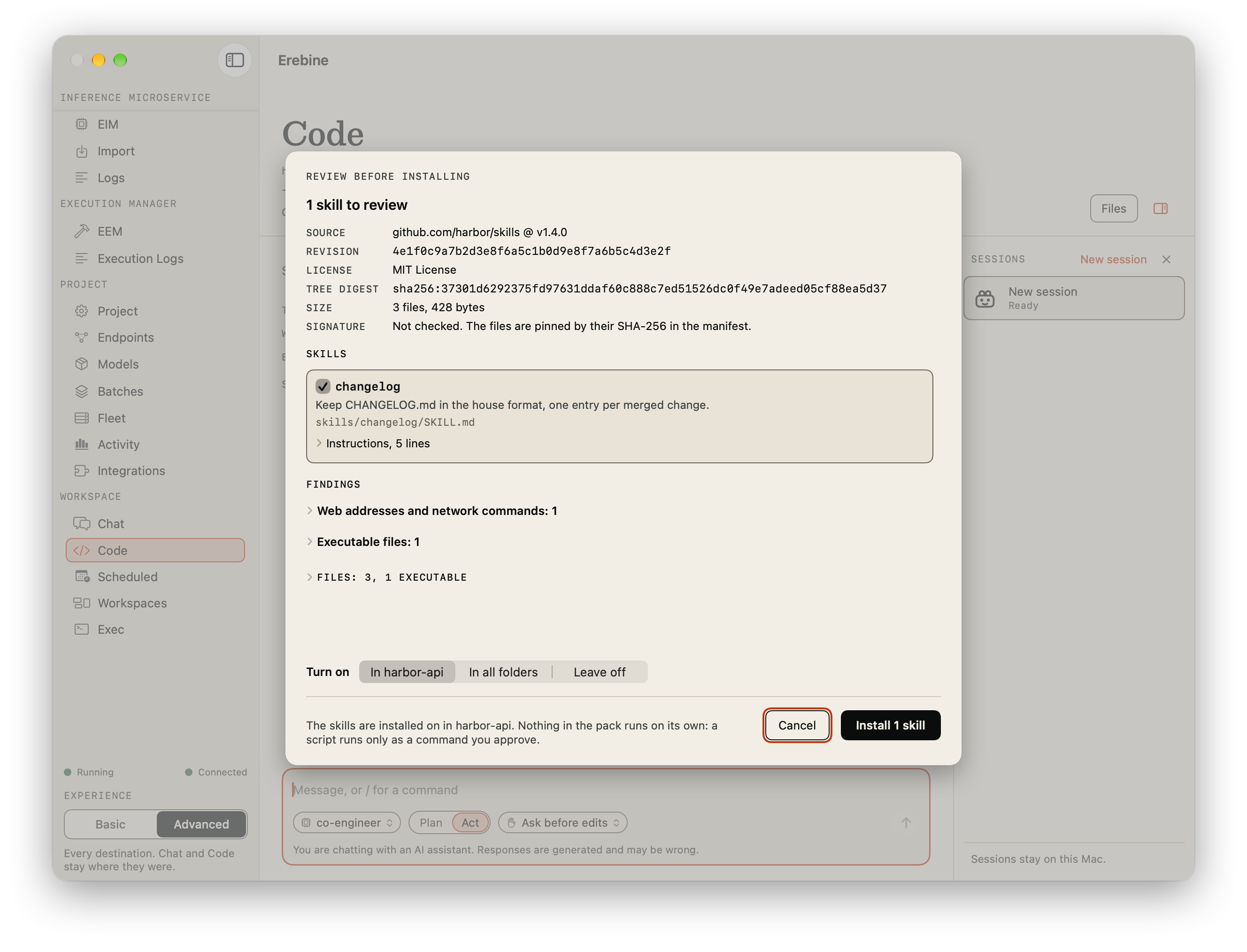
Code refuses a pack that holds links, devices, files that run as another user, paths that leave the pack, or more than its size limits, and installs nothing of it. Signatures are not checked: each file is pinned by its SHA-256 when it is installed, and a skill whose instructions change on disk afterwards is left out of sessions.
Turning skills on
A session uses only the skills that are on in its folder. After an install the library opens on the new skills and says where they are on. Each skill's row says On here or Off here for the open folder, and why: the folder's own choice, or because the skill is on in all folders. Turn a skill on or off for the open folder, or for all folders; the folder's own choice wins. Load at session start puts a skill's instructions in the prompt of every session it is on in, instead of waiting for the model to load it. A change applies to the folder's next session.
In a session the model sees the name and description of each skill that is on, is told that skills are instructions written by others that change neither approvals nor modes, and loads a skill when a task fits it. It can read the skill's other files, and nothing outside the skills you installed.
A skill that is on in the folder is also listed under
Skills in the /
menu, with its name as the command and the hint its
author wrote. Choosing it sends the model the skill's
instructions with what you typed after the name; the
conversation shows the line you typed, such as
/release-notes 3.2.0. A skill named like a
command runs as /skill: and its name, and
a skill that is not on in the session says so and keeps
what you typed.
A skill's script runs only as a command, and every command asks you as usual; the card names the skill and its revision. Tools a skill lists as pre-approved are ignored.
Updates and removal
Check for update fetches the source again and, when it changed, shows what changes: new executables, skills added and gone, and each changed file's lines. Nothing updates until you approve, and the previous revision stays until the new one is in. Remove deletes the skills, their settings in every folder, and the Always allow rules that named their scripts; an update drops those rules for the old revision too.
Checkpoints and Rewind
While a turn changes the folder, Code records checkpoints: the whole folder before the turn's first edit or command, and before and after every command; the file an edit changed, after each edit. Checkpoints are kept in a repository of their own in the app's data on this Mac, never in your folder, and taking one never runs your git configuration, hooks or signing. The header says Checkpoints on, or that they are off and why.
A message you sent carries Rewind to here when a checkpoint can return the folder to how it was when you sent it; a message after which nothing changed carries none. Choosing it asks first, on a card that says what will happen: files changed or deleted since are restored, files created since are deleted, ignored files, files over 20 MiB and nested repositories are left alone, and the conversation is kept. A directory that existed is never removed. The model is told on your next message which files were restored or deleted.
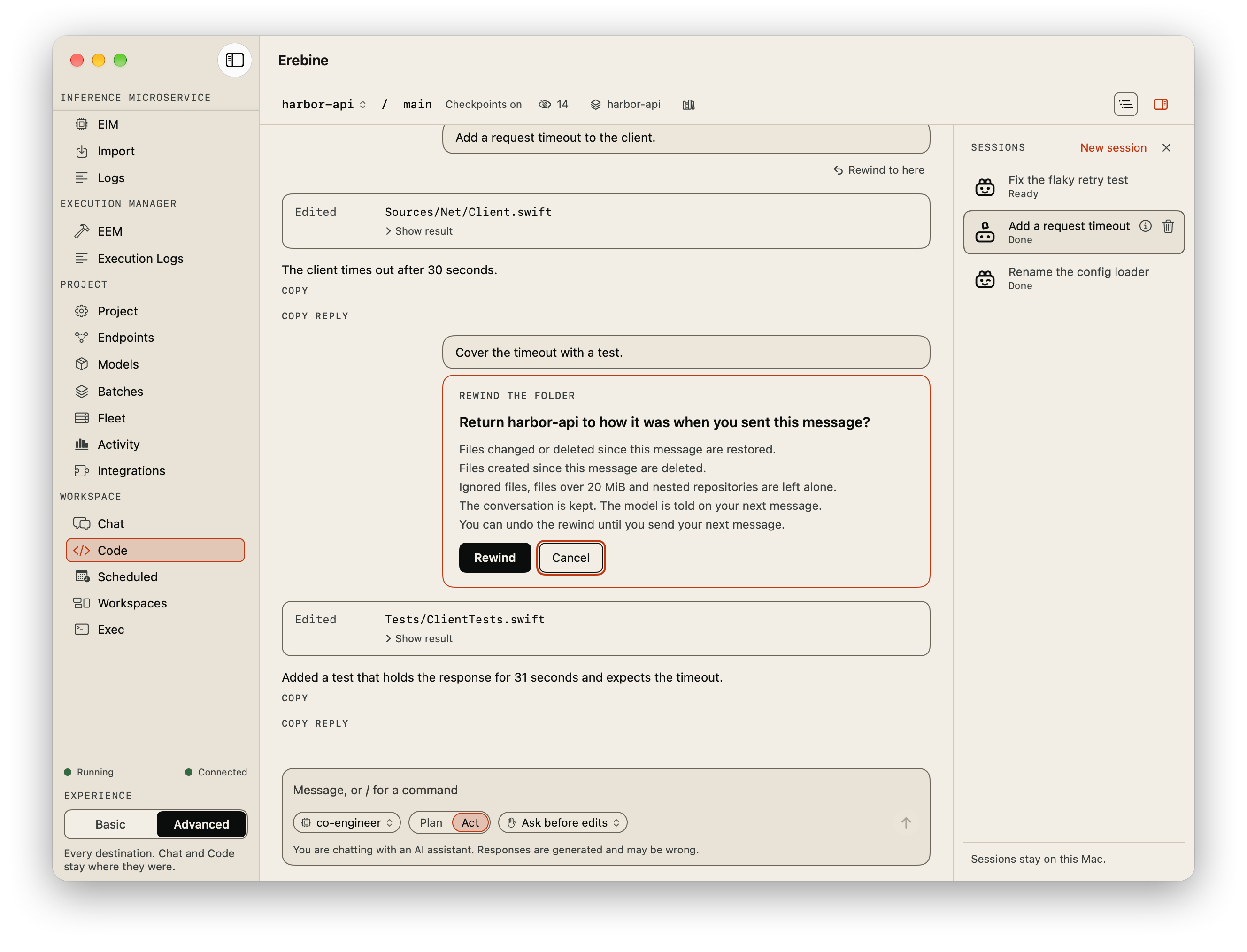
The result is a row in the transcript that lists what was restored and deleted, and what was left alone and why. A rewind records the present first, so the row offers Undo rewind until you send your next message, in the same run of the app. A session opened after the app restarts shows the rewind as a plain notice, with no undo.
Rewind does not cover:
- files ignored by the folder's own
.gitignorefiles; your global ignore file is not read; - files larger than 20 MiB, which the rewind names;
- nested repositories, which are skipped and reported;
- empty directories created since;
- anything a command changed outside the folder: installed packages, databases, containers, a pushed branch, a request already sent.
Checkpoints are off, with a notice, for a folder with more than 100,000 files or more than 4 GiB to keep, and on a Mac without git. Code still works without them. When the app starts, it removes a session's checkpoints once the newest of them is older than 30 days.
Rewind to here on your message also undoes what its sub-agents changed. A sub-agent's own messages carry no Rewind.
Sub-Agents
The session you talk to can hand parts of its work to
sub-agents. A sub-agent is a session of its own in the
same folder, with the same tools, approvals and mode,
started by the model with a short title and the whole
task. The session waits for each sub-agent's reply and
reads it, and can send it more work, an answer, or
continue after it pauses. Sub-agents
started in the same step run at the same time, four at
once; the rest wait for a place. A session has at most
16 sub-agents, and a sub-agent cannot start one of its
own.
The rail lists each sub-agent under the session that
started it, newest first, joined to it by a line, with
Bob's face and its state. In the conversation, each
sub-agent the model started or messaged is a row with
its title and what it is doing: Toasting, or Needs you
with its approvals, then Done with the start of its
reply, Paused, Stopped by you or Burnt. While it waits
on them, the session reads Toasting: waiting on 2
sub-agents. Open on the row, or
the sub-agent in the rail, shows its session: its work
so far, live while it runs.
A sub-agent asks for approvals in its own session, and
you answer them there. You are notified of them unless
you are looking at the sub-agent or at the session that
started it; a finished sub-agent sends no notification,
since its session reads the reply. While you look at
the session that started it, Code says so without
taking the screen or the keyboard: the session list
comes back if you put it away (put it away again and it
stays away for that approval), the sub-agent's row turns
the accent colour with Needs you: 1
approval, the session's row reads Toasting:
1 sub-agent needs you, and a line under the
header names the sub-agent and what it asks, with
Open, which shows its approval. Any
other session waiting on you while you look elsewhere is
named the same way. Each cue goes once the approval is
answered or the turn ends. Its messages come
from that session, so in this release a sub-agent has no
message field: its view says whose sub-agent it is,
offers Stop while it runs,
Continue in its place once it has
paused, and Chat
to go back to the session that started it. Stopping a
sub-agent ends only its turn; the session that started
it reads it as stopped and goes on. Stopping that
session stops its sub-agents.
Deleting a session deletes its sub-agents with it, and the confirmation says how many. Sub-agents share the folder: the model is told to give each one its own files and not to run builds or tests in two at once.
Trace
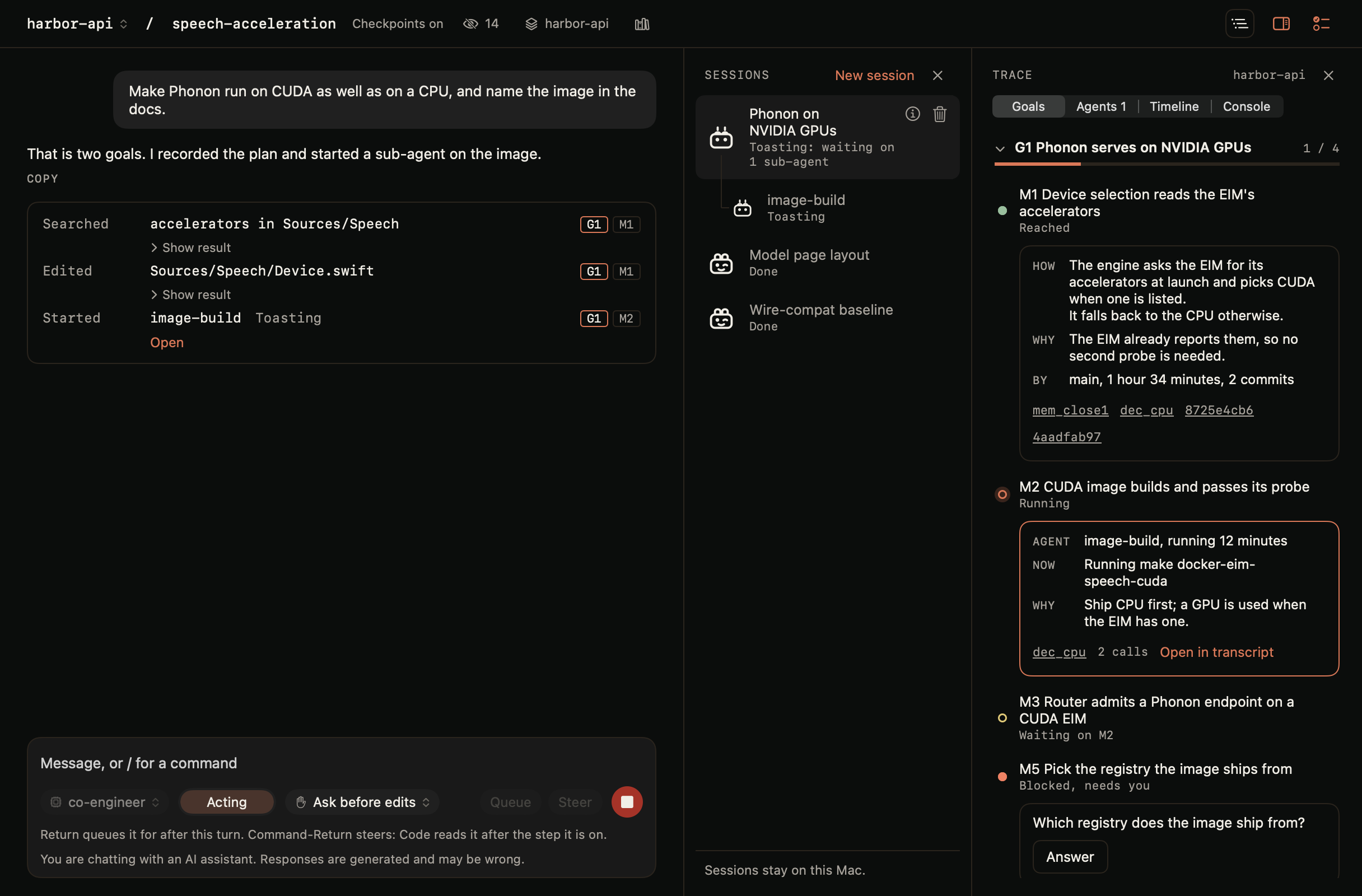
Trace is a second rail on the right of the Code pane. It shows the plan the folder's workspace holds: each goal, the milestones under it, which agent is working on which milestone and why, and how each finished milestone was done.
When you ask for work with more than one outcome, the model writes the plan before it starts: a goal for each outcome and a milestone for each step, numbered G1, M1 and so on. It sets a milestone in progress when it starts it, or hands it to a sub-agent. When a milestone is done, it saves one memory that says how it was done, why it was done that way and what was rejected, and links that memory, the decisions behind the work and its commits to the milestone. A request with one outcome gets no plan.
Turning it on
Trace is off until you turn it on. Its toggle sits at the header's end, beside the session list's; View > Show Trace and Command+Shift+K do the same. The choice is kept. The toggle is there only when the folder has a workspace that keeps project intelligence and your project offers the plan tools. A folder set to None, and a workspace with zero data retention, have no plan and no toggle.
In a wide window both rails show. In a narrower one they share one rail, and Sessions and Trace at its top pick which you see.
Sizing and closing the panels
The session list, Trace, and the plan board's inspector and Suggest links panel each have a width of their own. Drag a panel's leading edge to make it wider or narrower; double-click the edge for its default width. The edge takes the keyboard too, as a button does: with keyboard navigation turned on in macOS, Tab reaches it, and the Left and Right arrow keys then resize the panel and Return resets it. Widths are kept on this Mac. Panels you made wider give way as the window narrows, so the message column keeps its room; in a narrower window the session list and Trace still share one rail.
Each panel has a close button in its header. The session list and Trace come back with their toggles in the header; the inspector comes back when you select a card, or with View > Show Inspector (Command+Shift+I).
The four tabs
- Goals. Each open goal with its count and meter, and its milestones in order. Every milestone's state is written under its title: Planned, Running, Waiting on another milestone, Blocked, Reached. A running milestone opens into a card: the agent and how long it has run, what it is doing now, why, the decision behind it, its call count and Open in transcript. A reached one shows how and why it was done, who did it and in how long, and links to the memory, the decisions and the commits. A blocked one shows its question and Answer, which opens the session that asked. Dropped milestones sit under Dropped with their reason.
- Agents. The agents working now, each with its milestone, running time and calls, then the earlier stretches of work, newest first. Work done in another session, or on another Mac, is listed here from the workspace.
- Timeline. The same record in time order, by day: goal set, milestone planned, agent started, agent returned, blocked, reached, dropped, and each turn of your sessions that researched, with its Download research.
- Console. The output of the command the selected agent is running, read-only. It follows your selection: a selected agent, else the agent on a selected milestone, else the session on screen.
In the transcript, a tool call made for a milestone carries two small tags, its goal and its milestone. A call from a session whose history is not on this Mac cannot be opened.
Editing the plan
You can rename a goal or a milestone, move a milestone up or down, split it, drop it and restore it. A milestone an agent is working on cannot be dropped until the agent is stopped. Each edit is saved to the workspace at once, and the model is told what you changed at the start of your next message.
| Keys in the Trace rail | Action |
|---|---|
| Command+Shift+K | Show or hide Trace |
| Left and Right arrows on the tabs | Choose a tab |
| Up and Down arrows | Move through goals and milestones, or through agents |
| Right arrow, Left arrow | Open or close a goal or a milestone's card |
| Return | Open the milestone's newest call in the transcript; on a row that leads nowhere, and on a goal, rename it |
| Option+Command+Up or Down arrow | Move the selected milestone up or down |
| Return, Escape in a title field | Save the name, or cancel |
Plan Board
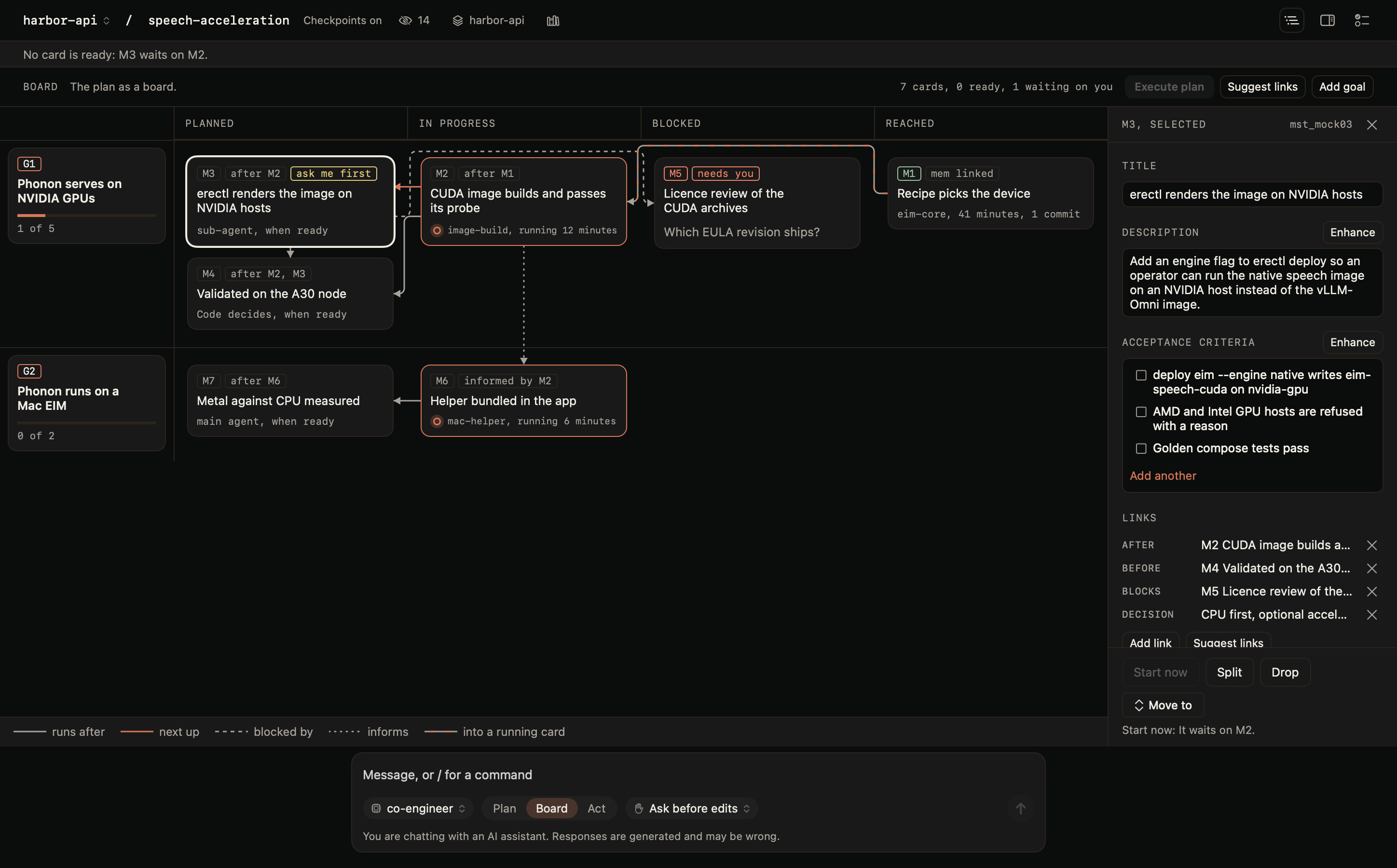
The plan board draws the same plan as a board: a lane for each goal, and four columns, Planned, In progress, Blocked and Reached. Each milestone is a card. Links between cards set the order Code works in.
Plan, Board, Act
When the folder's workspace offers the board, the dial in the composer has three stops.
- Plan. The transcript, in Plan. The model reads and proposes.
- Board. The board in place of the transcript, also in Plan. Nothing runs until you press Execute plan. You edit the plan by hand, or ask Code to change it in the message field.
- Act. The model works. Switching to Act starts nothing; press Execute plan and Code works the plan's ready cards until none is left. Transcript and Watch board beside the dial pick what you see while it does. While Code acts, Plan and Board leave the dial, which reads Acting; they come back when the run ends or you stop it.
The board is offered under the same conditions as Trace, and only when your project also offers the plan's link tool. Without it the dial has its two stops and nothing else changes.
In Plan and in Board the model may write the plan and nothing else: it can add planned goals and steps, edit and link them, and set a step blocked or dropped. It cannot start a step, close one, or save anything else.
Cards
Add goal in the board's header adds a lane. Add Card in a lane's menu, or Add card in an empty goal's Planned cell, adds a card; Split on a card adds one after it. Select a card and the inspector opens beside the board with its title, description, acceptance criteria, links and how Code runs it. Text saves when you leave the field.
Select several cards with Command-click, Shift-click or Command+A and the inspector gives way to a panel for all of them. Enhance all descriptions and Enhance all acceptance criteria ask for each card's text; an empty field is filled, and text you wrote gets a proposal you take with Use or leave with Keep mine. Find all links adds the links it scores 0.85 or higher and lists the rest for you to add. Run all three in order does all of it. The panel also sets who runs the cards, ask me first and may run beside others for all of them. Each action can be undone as one step, and none of them starts a run.
Select a goal and the inspector shows its title, description, cards and links, with Drop goal; Drop Goal is in the lane's menu too, and Delete drops the selected goal. A goal with cards asks first and says what happens to them: its unfinished cards are dropped with it and come back when it is restored, and reached cards keep their history. Nothing is deleted. A goal with a card in progress is not dropped until that card is finished or dropped. Undo on the line that follows restores the goal, and Dropped goals in the board's header restores one dropped within the last day.
A goal reached or dropped leaves the board. Closed goals in the board's header, with their count, opens the closed goals: the same lanes, cards and links, read-only, one lane for each goal with the day it closed, the newest first and ten at a time, with Show 10 older goals under the last. Select a card to see when it was reached, how it was done and why, and the agents that worked on it, with Open session for a session on this Mac. Back to the board returns. When every goal is closed, the board says so and offers View closed goals. On the board itself, a reached card's inspector shows the same record.
Drag a card to another column of its lane to set its state. Into Blocked asks for the question you need answered. Into Reached offers one field, How was it done?, saved as the card's memory. A card cannot be dragged into In progress: that column means an agent is on it, and Start now puts it there. A card an agent is working on stays where it is until the agent is stopped. Drag within a cell to reorder, and to another lane to move the card to that goal. Drag a card onto its goal, at the left of its lane, to drop it; the lane lists it under Dropped. While you drag, the place the card would land is outlined.
With no plan yet, Ask Code for a plan writes a request into the message field for you to edit and send: it names what the folder holds (the README, the project files, the latest commits, TODO notes, the conversation so far), or, in an empty folder, asks what you want to build, what it must work with and what done looks like. Nothing is sent until you send it; the goals and cards Code writes appear on the board.
Move To, in a card's menu and its inspector, does the same by name: Planned, In progress, Blocked, Reached or Dropped, or Option+Command+1 to 5 on the card the keyboard is on. A dropped card opens from its lane's Dropped list, with when and why it was dropped, and moves back from there.
Move a reached card back to Planned to have it done again. If reached cards wait on it, the board asks first and names them: move the card alone, or the card and those cards. A card moved back is marked to redo with when you moved it, its acceptance criteria are unchecked, and Code is told on its next message that the card is to be done again and its earlier work is not to be relied on. Cards that wait on it are no longer ready until it is reached again.
Links
Drag from a card's right edge to another card or a lane's header, or choose Add link, to link two items. A drag has the direction a drawn link has: drag from the card that comes first onto the card that waits for it. A link has one of four kinds:
| Kind | Drawn | What it means |
|---|---|---|
| Runs after | Solid line | The card waits until the other is reached or dropped, and is handed how the other was done. |
| Blocked by | Dashed line | The card waits on an obstacle: it cannot start until the other is reached or dropped. |
| Informs | Dotted line | The other card is context for this one. It sets no order. |
| Decision | A row in the inspector | The card carries out a decision recorded in the workspace. |
Links can join cards in different goals, and goals themselves. A card is ready when it is planned and everything it runs after or is blocked by, and everything its goal waits on, is reached or dropped. A link that would make a loop is refused: in Add link it is listed, dimmed and marked would loop. Select a link to see its two ends and remove it; Undo on the notice line puts a removed link back.
Acceptance criteria
A card's acceptance criteria are a checklist of what must be true for it to count as done. When Code finishes the card it says, for each criterion, whether it is met and how it knows, and checks the ones that are. Code cannot set a card reached while a criterion is open: it sets the card blocked and says what is missing.
Ask me first
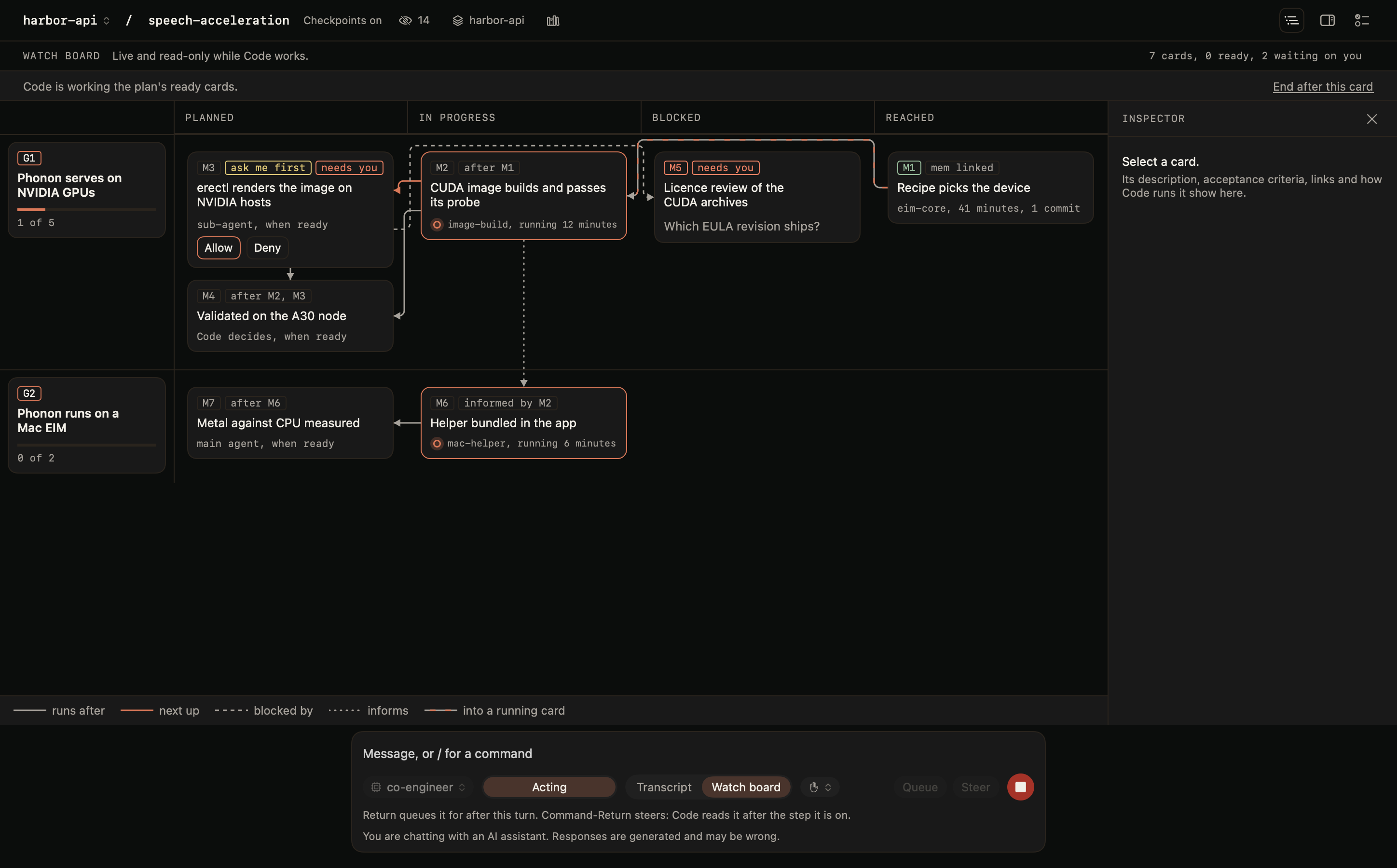
How Code runs it holds three choices for a card: who works it (Code decides, the main agent, or a sub-agent), Ask me first, and May run beside others. A card set to ask first is never started without your answer, under every trust preset, Run without asking in this folder included. The question appears as an approval card in the transcript and as Allow and Deny on the card in Watch board; answering one answers both. Who works a card is an instruction to the model, not a rule.
May run beside others
May run beside others is your permission, not an order. Before each batch of a plan run, Code works out which of the ready cards you marked can in fact run at the same time, and starts only those together, each as a sub-agent, three at most. A card is worked in order instead when a link or a chain of links orders it against another card of the batch, when it asks first and has not been allowed, when it is set to the main agent. For the cards that are left, Code asks the workspace's models whether one depends on another; a likely dependency keeps the pair in order for this run. If that check cannot run, Code does not guess: the cards run in order unless each already has a link.
The line under the header says what was decided, and why, before anything starts: which cards run together, which wait and for what, each pair's verdict with its score, and what the check cost. A dependency found this way is offered with Add link; it is never added for you. Once it is a link, the next run needs no check for that pair.
Separate copies
Cards that start together do not share your folder. Each sub-agent works in its own copy: a git worktree for a repository, holding what is on disk including uncommitted and ignored files, and a copy of the files for any other folder. The copies are kept on this Mac, outside the folder. Your branch, index, stash and remotes are not touched, and nothing is committed. The folder's approvals, trust preset and never-read list apply in a copy as they do in the folder. So cards that edit the same file, and a project of one file, run in parallel. The line under the header says so: Running M2, M3 and M4 together in separate copies; their edits to index.html are merged as each finishes.
When a sub-agent finishes, Code merges its copy into the folder, file by file, and removes the copy. Only files the card changed are touched, so what you changed meanwhile stays. The merge is one checkpoint named for the card, and Rewind to the run's message returns the folder to how it was before the batch. Stop merges nothing and removes the copies.
Two cards that changed the same lines are never merged for you. The file stays as the folder has it and the card says needs you: merge conflict in index.html, with the diff from the folder's version to the card's and three answers:
- Resolve with the agent. The main agent is given both versions and writes the merged file, under the folder's approval rules.
- Keep the folder's version. Nothing is written. The card's edits to that file are dropped.
- Take the card's version. The card's file replaces the folder's. Rewind takes it back.
The run goes on with the other cards meanwhile, and the card stays open until you answer. A conflict that waits is kept when you quit, with the copy it needs. If that copy is gone, only the folder's version can be kept.
Run parallel cards in separate copies is under Settings, Code, on by default. Off, cards share the folder, and cards that edit the same file run in order. A folder that is not a repository, on a disk that cannot clone files, gets copies only up to 256 MB; past that its cards share the folder and the line says why. In a repository, what a card installs or builds in ignored directories stays in its copy and is not merged back. A commit a card makes in its copy is not kept; its changes arrive as uncommitted edits.
Working the plan
Changing the mode never starts, resumes or sends anything. One button runs the plan, Execute plan, and it is in every mode: on a line under the header in Plan and in Act, which says how many cards are ready, and in the board's header. Press it (Shift-Command-Return) and Code reads the plan, tells the model which cards are ready, and after each turn reads the plan again and goes on by itself until no card is ready. Each of those turns is one Plan run row in the transcript. Pressed in Plan or on the Board it switches to Act first; the first time in a folder it says so, and what will ask before it runs, and waits for a second press. With no card ready the button is dimmed and says why. A message you type, or Continue on a paused turn, is one turn and not a run of the plan: when it ends with cards still ready, the transcript ends with the same button. Start now on a card works that one card and stops; it also answers the card's ask-first question in advance. While the run goes on, Plan and Board are not offered, so a stray click cannot pause it or refuse its edits. End after this card lets the card in progress finish and starts no other; Stop ends the turn at once.
A run uses the model chosen in the composer, whatever model wrote the plan. A card's inspector shows the model that wrote it, the models it ran with and the one its next run uses; that record never chooses the model. If the composer's model is no longer offered by your project, nothing runs and a line beside the model menu says which model is gone; choose another and run again. If the model stops answering during a run, the run ends and says which model did not answer. A sub-agent asked for a model your project no longer offers runs on the session's model and says so.
The run ends, and says why, when:
- no card is ready: the plan is done, blocked, or waiting on you;
- a turn is stopped, fails or hits a limit;
- a turn moved no card;
- a card returns a second time to a state it already held without being finished;
- it has run 50 turns.
A card Code is working on is outlined in the accent, and the outline slowly brightens and fades. The runs after and blocked by lines into it carry short dashes that move toward it, and its last line says it is running and for how long. A card waiting for your answer, to an approval or to Allow, stands still and says what it waits for. With Reduce Motion on nothing moves: the outline and the dashes stay as they are.
Watch board shows the plan live and read-only while Code works. Edits you make on the board mid-run hold at once: a card you dropped, relinked or set to ask first is refused or asked about when the model reaches for it, and the model is told what changed with its next message. Quitting the app ends a run; the plan stays as the workspace has it.
Enhance and Suggest links
Enhance beside a card's description or acceptance criteria asks the composer's model for a proposal, written from the card, its goal, the cards and decisions it is linked to and the project brief. The proposal appears under the field with Use this, Try again and Keep mine. Your text is never replaced before you choose Use this.
When a model writes nothing usable, often because it spent its whole answer thinking, Erebine asks it once more with less thinking and more room. If it still writes nothing, the board says so in a sentence that names the model, and offers Try again, Try with another model your project serves, and Write it yourself. When the same thing fails twice, another model comes first. With several cards selected, the cards that worked keep what they got, and Try the 3 that failed again asks only the others.
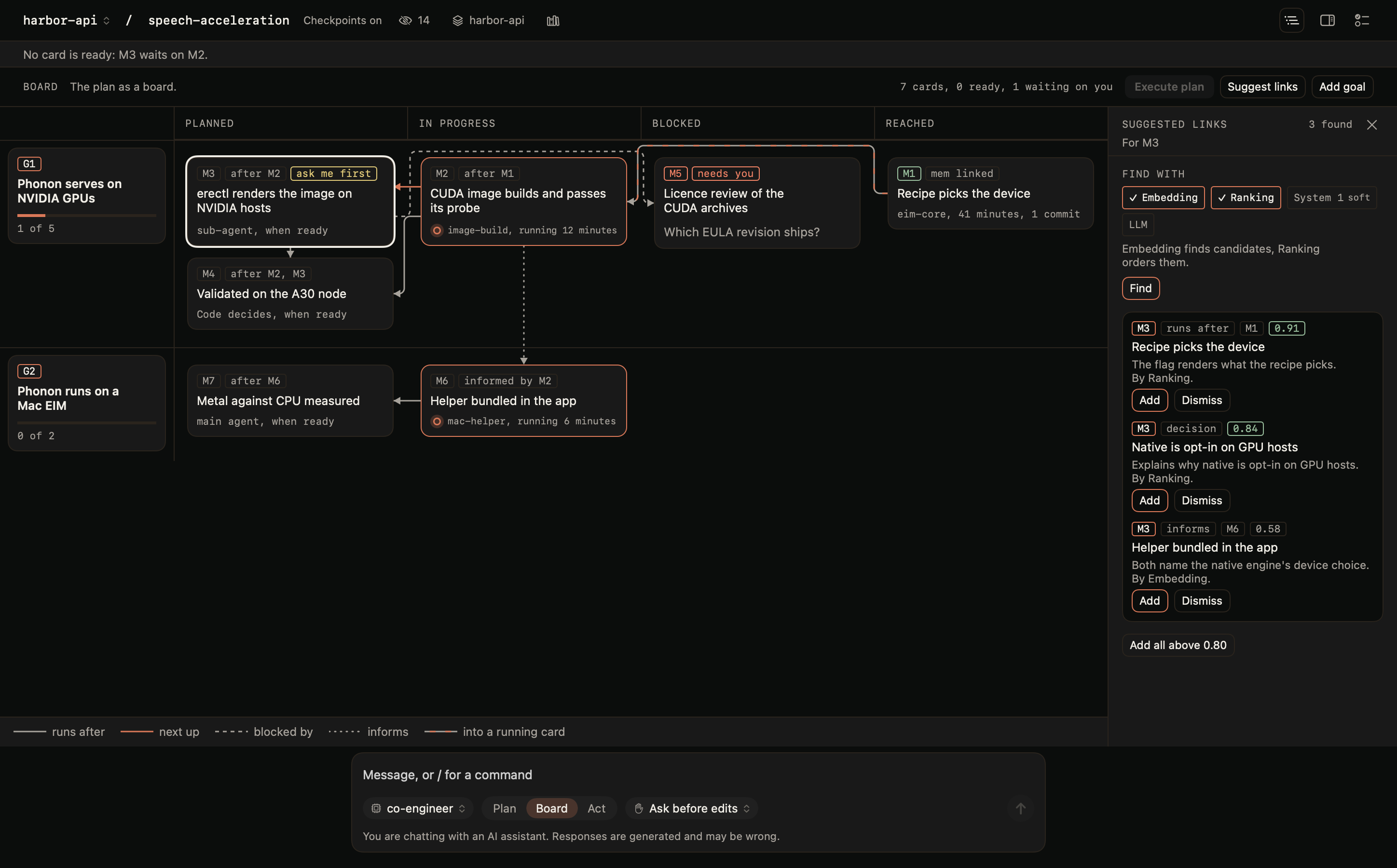
Suggest links, in the inspector for one card or in the header for the whole board, proposes links. Choose any of four methods under Find with, then Find. The methods spend inference, so nothing runs until you press it.
| Method | What it does | Kinds it proposes |
|---|---|---|
| Embedding | Finds the cards and decisions closest in meaning. | Informs, Decision |
| Ranking | Reorders those candidates with the workspace's reranking endpoint and keeps the best. | Informs, Decision |
| System 1 | Asks the project's System 1 decisions model whether one card needs the other's result. It scores below the bar Erebine sets for link suggestions on a fixed test set, and the panel says both numbers. It still runs when you choose it; its switch and the suggestions it decides are marked soft: a hint to check, not a measurement. Nothing in a workspace changes that score. | Runs after, Informs |
| LLM | Has the composer's model read the card, the candidates and the links that exist. | All four |
A method the workspace has no endpoint for is dimmed with the reason. Each suggestion shows the card the link would belong to, its kind, its target, a score, a reason and the method that produced it, with Add and Dismiss; Add all above 0.80 adds the strongest. A pair that is already linked, and a link that would make a loop, are never suggested. Nothing is written without a click. Enhance and each method are billed to your project as the requests they make.
Keyboard
| Keys on the focused card | Action |
|---|---|
| Arrow keys | Move between cards: Left and Right across columns, Up and Down within a column and then across lanes |
| Space or Return | Select the card and open the inspector |
| Option+Command+Right or Left arrow | Move the card to the next or previous column |
| Option+Command+Down or Up arrow | Reorder the card within its goal |
| Shift+Option+Command+Down or Up arrow | Move the card to the next or previous goal |
| Command+L | Add link |
| Command+Return | Start now |
| Delete | Remove the selected link, or the link whose row has the keyboard in the inspector |
| Escape | Close the Suggest links panel, then clear the selection |
A move the board would refuse by drag is refused by key with the same sentence. Split, Drop and each move are also in the card's menu; a lane's header lists its dropped cards with Restore. In Watch board only the arrow keys, selection and Escape answer.
What is stored in the workspace
The plan lives in the folder's workspace in your project, not on this Mac, so another session, another Mac, and any client that uses your project's MCP tools read the same plan. The workspace holds:
- each goal and milestone: its title, description, number, state, order and, when blocked or dropped, the question or the reason;
- a card's acceptance criteria and which are checked, and how Code runs it;
- the links between cards and goals, and from a card to its decisions;
- the memory that says how a milestone was done, and the commit ids it names;
- which agent worked on a milestone: its title, whether it was the main agent or a sub-agent, the model, when it started and ended, how it ended and how many tool calls it made.
What an agent is doing this second, a command's output and the conversation itself stay on this Mac, with the rest of the session. Which rails show, the tab, the collapsed goals and the methods chosen for Suggest links are settings of this Mac.
The Code Pane
- Header. The folder's name and branch, its path, whether checkpoints are on, Never read: with the number of patterns, which opens the folder's never-read list, Workspace: with the folder's workspace, which opens its choice, and Skills, which opens the skills. In Advanced, Prompt opens the prompt. The folder's name is the folder switcher: click it, or press Command+Shift+O (File > Switch Folder...), for the folders you opened, the most recently used first: the one you are in, marked, then the others. Opening a folder, switching to it and opening one of its sessions all count as using it, and the list keeps 200. With more than eight, type to filter. Up and Down move, Return switches and Escape closes. Sessions in the folder you leave keep running. Point at a folder, or Control-click it, to remove it from the list: the folder and its sessions stay on this Mac, and opening it again lists it again. Open folder..., at the bottom, opens another; until a folder is open, Open folder is at the header's end. A dot beside the folder's name means a session in another folder needs you: that folder is marked in the list, and a line under the header names the session, with Open. Code returns to the folder you were in when you open the app again. Once a session's chat starts, the header shrinks to one row: the folder and branch, and the same controls in short, each named in its tooltip; in a narrow window they give up their words for their symbols, the workspace's name first. A new session has the full header again.
- Session rail. On the right: the folder's sessions, a new one first and then the most recently changed, each with Bob's face and its state written under its title. New session, or File > New Session, starts another session; one that is running keeps running. Point at a session, or select it, and its details control and trash can appear: the details list when it was made and last changed, its model, turns, requests, tool calls and tokens. Delete asks first, and a running session is stopped before it is deleted. A session's sub-agents are listed under it, joined to it by a line; deleting the session deletes them too. Sessions stay on this Mac. Send feedback, at the rail's foot, opens the feedback sheet. The toggle at the header's end, View > Hide Session List or Command+Shift+L puts the rail away and gives the conversation the width; while it is away, the toggle shows how many other sessions need you. The choice is kept.
- A new session. Before its first message, a session says what its folder keeps: the workspace its sessions read and save in, when a session here last loaded the workspace's brief, and the folder's last session, with Continue to open it where it was left. A message starts a new session instead; nothing resumes on its own. Workspace, Never-read list and Skills open the folder's settings.
- Trace rail. A second rail with the workspace's plan, off until you turn it on: see Trace.
- Files rail. A third rail with the folder's files, from Files at the header's end; a file opens in a read-only viewer over the conversation: see Files.
- Transcript. Your messages and the model's replies, as in Chat, with the model's reasoning collapsed. Its work is rows, one card per request: searches, reads, each edit with the lines it added and removed, each command with its output as it prints. Show result opens what a read or a search returned; a call to your project's tools shows its result as a card. Command lines, the diffs on approval cards and the lines a read returned are highlighted, minimally: commands and operators, strings, comments and the keywords of the file's language. A command's output is not. A line under each request names the model and its tokens: in, out, and how many came from the cache, such as
4,506 tokens in, 212 out, 3,136 cached (70%). - Composer. The chat's composer, with the model menu, the reasoning effort on a model that takes one, Plan or Act (and Board between them when the folder's workspace offers the plan board), and the trust preset beside it. Its button sends, and stops the turn while one runs. While a turn runs the field still takes messages: Return queues one and Command+Return steers the turn with it; see Queue and Steer.
/at the start opens the commands and skills. A large paste becomes a card above the field; see Pasting Text.
Stopping a turn keeps the reply so far, marked incomplete, stops a running command and what it started, and answers every call that did not run as cancelled.
Bob
The toaster is Bob. Each session in the rail shows his face, and its state is always written under its title, so the face is never the only signal:
| Written | Bob | Means |
|---|---|---|
| Ready | Ready | Waiting for your message |
Ready: and the reason, such as stopped by you | Ready | The turn was stopped or paused |
| Toasting | Toasting | A turn is running |
| Toasting: waiting on and the number of sub-agents | Toasting | A turn is running and waiting on its sub-agents |
| Needs you: and the number of approvals | Needs you | An approval is waiting |
| Done | Pop | The task finished while you were not looking at the session |
| Done | Wink | The task finished and you have seen it |
| Burnt: and the reason | Burnt | The turn failed, or the conversation no longer fits |
When you are not looking at a session (Erebine is not in front, Code is not on screen, or another session is), Erebine notifies you: Needs you. when an approval waits, Toast is up. when the task is done, and Burnt. when it fails. A turn you stopped or that paused sends none. Clicking a notification opens the session.
When a task finishes, Bob plays the pop once on its row: toasting, lever up, pop, wink. With Reduce Motion on, nothing plays.
Queue and Steer
You do not have to wait for a turn to end to write the next message. While a turn runs, the composer keeps working and gains two buttons beside Stop: Queue and Steer. A line under the field says what each key does.
| Key | While a turn runs |
|---|---|
| Return, or Queue | Queues the message. It is sent when the turn ends. |
| Command+Return, or Steer | Sends the message into the running turn. |
| Command+., or Stop | Stops the turn, as before. |
The queue
Queued messages sit in rows above the composer, numbered in the order they will be sent. Each row has Edit, which puts its text in the field (Return saves it back to its place), and Remove; with more than one, two arrows move a row earlier or later. Every control is reachable from the keyboard and named for VoiceOver.
- One per turn, in order. When a turn ends on its own, the first queued message is sent as the next turn, then the next after that turn, until the queue is empty.
- A queue that pauses. A turn that you stopped, that failed, that paused, or in which you denied an approval does not send what is queued behind it. The rows stay, a line above them says why, and Send queued sends them when you are ready. Nothing is sent into a state you have not seen.
- Commands and skills. A queued command runs as a command when its turn comes, and a queued skill runs as that skill. A command that cannot run then pauses the queue and says why.
- Plan and Act. A message is sent in the mode the composer was in when you queued it; a row queued in the other mode says so. The trust preset is the folder's at the moment the message is sent: it is your standing choice for the folder, so the latest one applies.
- Per session, and kept. Each session has its own queue. It keeps sending while you look at another session or folder, and it is saved with the session. After you quit and reopen Erebine the rows are back, paused: nothing is sent until you press Send queued.
Steering
Steering changes a turn's course without stopping it. Code works in steps: it asks the model, runs the tools the model calls, and asks again with the results. A steered message is read at the next step:
- While tools run, it waits for their results and is sent with them, so no work is lost.
- While an approval waits, it waits for your answer. The approval is still yours to give.
- While the model writes a reply that calls no tools, it is sent after that reply, and the turn goes on instead of ending.
- While the session waits on sub-agents, it waits for their turns to end. It goes to the session you typed in, not to the sub-agents.
- While Code works the plan, it goes to the step being worked, and the plan goes on.
Until it is read, a steered message sits first in the queue, marked steer, and can be taken back. Once read it appears in the transcript where the model read it, marked sent while working. If the turn ends before it is read (you stopped the turn, or it failed or paused), the message stays in the queue as its first row. To steer with a message you already queued, press Edit on its row and then Command+Return: it leaves the queue and is sent into the turn. A command cannot steer; queue it.
In Chat
Chat's composer queues the same way, and a queued message keeps the files you attached to it. Each chat has its own queue, kept on this Mac. A reply in Chat is written by the service in one piece, so steering there stops the reply, keeps what it wrote, and sends your message as the next turn, marked the same way.
A chat keeps working when you leave it. Open another chat, go to another part of the app, or close the window: the reply goes on, its queue keeps sending, and the chat is as you would have watched it when you come back. The chat list writes each chat's state under its name, with Bob's face: Toasting while it works, Needs you when an approval or a question waits for you, Done for a reply that finished while you were away, and Burnt for one that failed. A question that arrives while you are elsewhere also sends a notification. Nothing is answered for you. Erebine keeps up to eight chats working behind the one on screen; past that it stops following the oldest, whose reply the service still finishes and keeps. Quitting Erebine ends a reply from this Mac's own engine; a reply the service writes is in its chat when you open it again.
Pasting Text
A paste of 5,000 characters or more, or of more than 40 lines, does not go into the message field. It becomes a Pasted text card above the field, with its line count and size, and goes with your next message. The field stays quick however much you paste. A shorter paste goes into the field as text.
| On the card | Does |
|---|---|
| Click, or Return or Space with the card focused | Shows the text, read-only, with line numbers. |
| Insert as Text, in the card's menu or its preview | Puts the text in the field to edit. Offered up to 50,000 characters. |
| Remove, the card's close button, or Delete | Takes the card away. |
| Command+Z after pasting | Takes the card away; Shift+Command+Z puts it back. |
| Retry, on a card that did not upload | Uploads it again. The card keeps your text until it is sent or removed. |
The card is named for VoiceOver with its size, and its actions are there too. A card is a message on its own: press Return with nothing typed and the pasted text is sent by itself. Type a line first to say what to do with it.
- In Code. The text goes inside your message, under what you typed, and the transcript names it:
[Pasted text: 240 lines, 9.6 KiB]. It must fit the model's context: pasted text can take up to half of it. A paste that does not fit is refused, with the reason above the composer; save it to a file in the folder and mention the file instead. A queued message keeps its pasted text. - In Chat. The text is saved to the chat as a pasted document, named for its first Markdown heading or Pasted text, the same as a paste in the web chat, and sent with your message the way an attached file is. The card says Uploading until it is done, and the message waits for it. If the upload fails, the card stays with your text and says why: Retry it, insert it as text, or remove it. A pasted text can be up to 10 MiB, and one message carries up to eight files. In a chat with this Mac's own engine, and in an endpoint's playground, the card's text goes inside your message, as in Code; a queued or steered message there keeps its pasted text too. Switching between this Mac's engine and a cloud chat takes the cards with you: a cloud chat saves them as pasted documents, and this Mac's engine takes their text into the message. A card the other side cannot take, such as a file for this Mac's engine, stays where it was, and the line above the composer says why.
A screenshot, or a file copied in Finder, pasted into Chat's field is attached as if you had picked it. An image sent with nothing typed needs a model that reads images: with one selected that cannot, Chat does not send it, says so above the composer and keeps the image. Pick a model that reads images, or add text.
Long Conversations
A model reads a fixed amount at once: its context. A session that reads many files and runs many commands fills it. Code keeps a long session going in two steps, and tells you each time.
- Old tool results go first. The tool results from before your last three messages are replaced with a short note, all at once. The model can run those tools again.
- Then the conversation is compacted. The model writes a summary of the older turns, and from then on reads that summary and your latest messages in place of the older ones. Your instructions to the folder, the project's brief and any skill instructions are sent as always, never summarised.
The summary keeps your goal, your instructions and corrections in your own words where they are short, the decisions and their reasons, which files changed and why, the commands run and what they returned, what is verified and what is not, open questions, the next steps, and the exact paths and names needed to go on. It also lists the files the model had read, with a note to read a file again before relying on it.
Nothing leaves the transcript. You can scroll back through everything. A Compacted divider marks where it happened and says how many turns are now a summary, the tokens before and after, what the model no longer sees, and the tokens writing the summary used. Open Summary on the divider to read it. While the summary is being written the row reads Compacting the conversation...; Stop cancels it, and nothing changes unless the summary is finished. A summary that fails or is cut off is never used: the conversation stays as it was and the session says why.
Code compacts on its own before a request that would not fit, at about four fifths of a large model's context, and again if the model refuses a request as too long. A summary that fails is tried again as the conversation grows, not once a turn. Turn this off under Settings, Conversations, Compact automatically; it is on by default. Once the conversation fills half the context, the header shows how full it is, such as Context 62%.
A request that would leave the model too little room to reply is never sent as it is. Code compacts first, and when no summary can be written, or Compact automatically is off, it removes the results of older tool calls, which needs no model. When a reply is still cut off by a full context, Code makes room and tells the model to go on from where it stopped, once in a turn, in a message the transcript marks as the session's. A second such reply pauses the turn. A sub-agent's task is sent again whole after a compaction.
Type /compact to compact now, between
turns. Words after it say what to keep:
/compact keep the API design discussion.
While a turn runs, Return
queues it like any message
and it runs when its turn comes, before the messages
queued behind it; it cannot be steered into a turn. A
conversation too short to gain from a summary says
there is nothing to compact.
Rewind works across a compaction. Rewinding to a message from before it undoes it: the model reads the full conversation from that message again, and the divider says the compaction was undone. A sub-agent compacts its own conversation the same way, and a plan being worked keeps its place.
Chat answered by this Mac's own engine compacts the
same way, with the same divider and the same
/compact. A chat kept by the service
needs none: the service fits every turn to the model's
context itself.
When a Turn Pauses
A turn pauses, and says why, after:
- 60 requests to the model in one turn, unless the folder's preset is Run without asking in this folder;
- 5 tool calls in a row that failed or were refused (a command that ran and exited with an error has not failed);
- the same tool called with the same arguments three times in a row (the third is not run);
- the same tool called with the same arguments and the same result three times in one turn, after the model was once told to change its approach (the first time, Code tells it and the turn goes on);
- a reply cut off at the model's output limit (a tool call it was writing is dropped);
- a reply cut off because the conversation filled the model's context window and Code could not make room for it to go on. The notice says which of the two it was.
The notice the turn paused on has
Continue. It goes on from where the
turn stopped. A message of your own does the same, and
can say what to change. Where the context window is
full, make room first: run /compact, or
start a new session.
A paused sub-agent has no
message field, so Continue is under
its transcript, in Stop's place. It is
also on the sub-agent's row in the session rail, beside
Open on its row in the session that
started it, and on its row in
Trace's Agents tab. Continue runs
the sub-agent's next turn without moving you to it.
When that turn ends, the transcript of the session that
started it says so, and your next message there tells
its model how the turn ended. Nothing is sent to that
model before then. A session whose sub-agents have
paused says so on its own row, such as Done, 1
sub-agent paused, and its
Continue goes on with them.
A conversation about to outgrow the model's context is
compacted. When it
still does not fit, the session says so: run
/compact, or start a new session to keep
working.
A request that fails before its reply begins is sent again: after a dropped connection or a 502, 503 or 504, in 2, 4 and then 8 seconds; after a 429, once the wait the router names has passed (5 seconds when it names none, 60 at most). A request is sent at most four times, and never again once its reply has begun.
Feedback
Help > Send Feedback, or Send feedback at the foot of the session list, opens a sheet with a text field. What you type goes to the Erebine team with your account, marked as sent from Erebine Desktop with the app's version.
Include diagnostic details adds four lines, listed in the sheet before you send: the app's version, your macOS version, the part of the app you were in, and in Code the model in use. It is off until you tick it. Nothing from your sessions, files or folders is read.
You can send five times an hour, up to 4,000 characters each. If a send fails, with no connection for example, the sheet says why and keeps your text, also when you close it.
Requirements
- A Mac with Apple silicon, running macOS 26 or later.
- An Erebine account and a project that serves at least one model that accepts tools. Code lists only those models; a model that cannot call tools is answered with This model cannot call tools. Choose a model that can.
- Git 2.32 or later for the git tools and for checkpoints: the git that comes with Xcode or its Command Line Tools, or Homebrew's in
/opt/homebrew/binor/usr/local/bin. Without it everything else works. On a Mac without the Command Line Tools the git tools never run/usr/bin/git, so they never open its install dialog.
Basic and Advanced
Erebine Desktop opens in one of two experiences.
| Experience | Sidebar |
|---|---|
| Basic | Chat, Code, Scheduled and Project. Sign in, open a folder, work. |
| Advanced | All 17 destinations, in four groups: the EIM on this Mac with Import and Logs; the EEM on this Mac with Execution Logs; the project's Project, Endpoints, Models, Batches, Fleet, Activity and Integrations; and Chat, Code, Scheduled, Workspaces and Exec. |
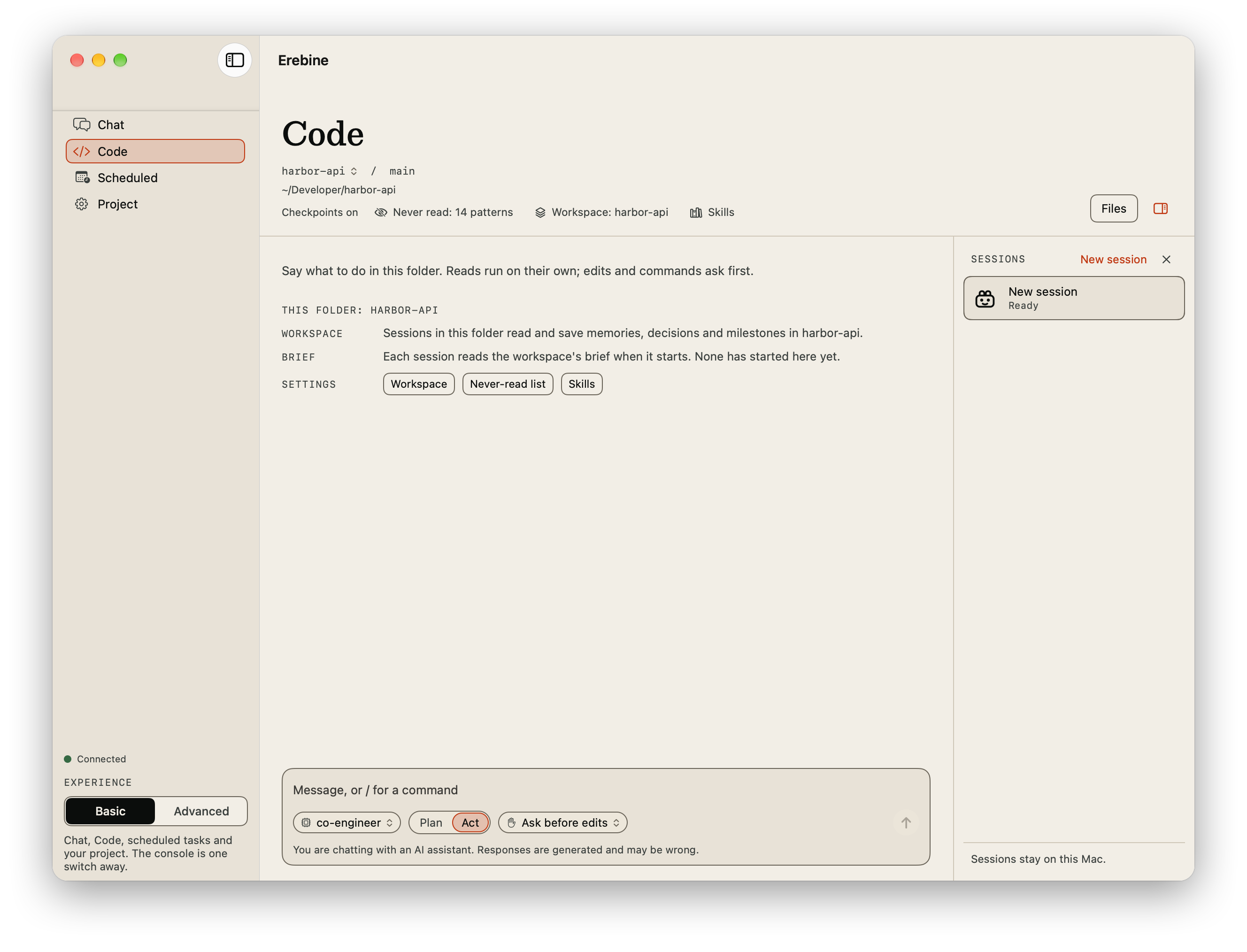
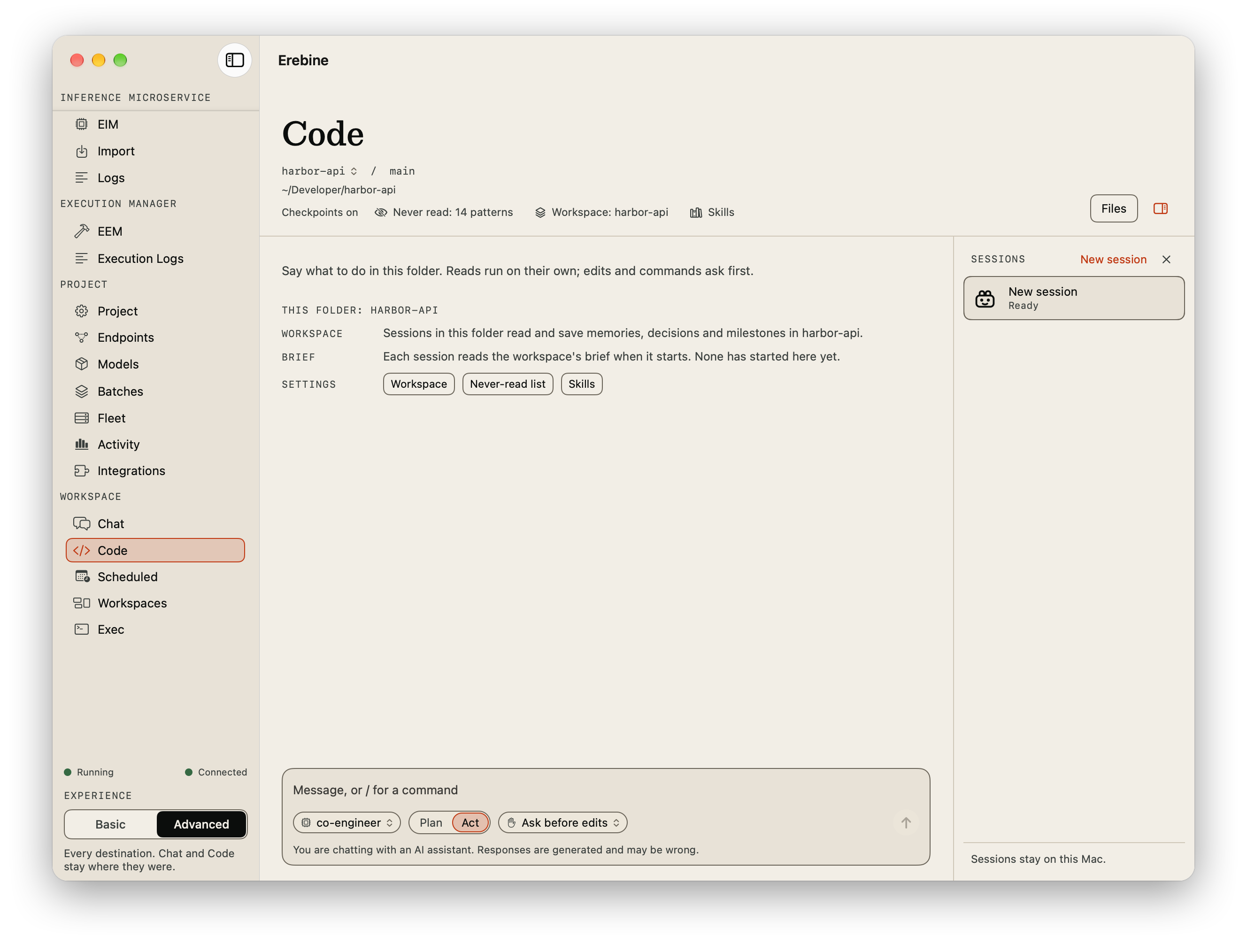
Scheduled holds the project's scheduled tasks; it is hidden on a deployment that does not run them.
The experience also sets Chat's model menu. In Basic it offers Auto and your project's endpoints by name, as the web app's Basic chat does; Auto picks the best model for each message. In Advanced it offers Workspace default, Semantic router and the endpoints. If the endpoint a chat used is removed, the chat goes back to the workspace default (Auto in Basic) and a line above the composer says so. Code's model menu is the same in both.
Until you have chosen for a project, Erebine asks once, after you sign in: How should Erebine open for you? Switch any time from the bottom of the sidebar or from Settings. Signed in, the choice is the one the web app makes for you in that project, described in Basic and Advanced: it is yours alone, and switching on the desktop switches the web app too. Signed out, a switch changes only this Mac.
A project owner with endpoints they deployed who chooses Basic, in the chooser, the sidebar or Settings, is told that those endpoints keep running and billing while Basic hides them, and a switch asks to confirm.
Signed out, the app opens the way you last chose. With no choice yet, it opens in Advanced on a Mac that already runs an EIM or an EEM, or where you chose Use this Mac without an account, and in Basic otherwise.
In Basic a sign-in lands on Code, and a later launch on the destination you used last. In Advanced a sign-in lands on Project and a launch on the EIM. An account that still has to choose its project lands on Project.
The experience changes which destinations the sidebar lists, never what your account can reach. A notification can still open a destination the experience hides.
